Inside TFS
Branch By Release in TFS 2010
Mickey Gousset begins a series of columns looking at branching/merging patterns and how to implement them using Team Foundation Server 2010.
Configuration of your version control system is very important to the long term success of your development project. When configuring your version control system, one of the main items to consider is the branching and merging strategy you will follow. There are many different strategies around branching and merging. In this next series of columns, we will touch on a couple of different strategies, analyze how they are implemented conceptually, and then look specifically at how to implement them using Team Foundation Server 2010.
Let's Talk Theory
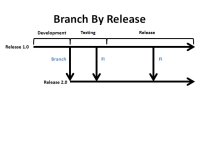
One of the easiest branching strategies to implement is Branch By Release. This strategy is also referred to as the "staircase" model, as shown in Figure 1.
In the Branch By Release model, all development takes place on a single line of code. In Figure 1, this is shown by the first line in the diagram, labeled Release 1.0. Once development of the release has completed, and testing is about to begin, the code is branched to Release 2.0. This allows the testers to start doing their job, while developers begin work on the next release. When Release 2.0 reaches the testing stage, another branch is created for Release 3.0.
Branch By Release is conceptually easy to understand, as every release is on its own branch, i.e. every release is maintained separately. This makes the merging strategy very easy, as merges only occur in one direction, from an earlier release to a later release. Figure 2 shows an example of the merging pattern used.
[Click on image for larger view.] |
| Figure 2. Branch By Release -- Merging Pattern. |
In Figure 2, once development of Release 1.0 has completed, a new branch is created for Release 2.0. The developers begin work on Release 2.0 while Release 1.0 is being tested. During the testing phase, a bug is found. The bug gets fixed on the Release 1.0 branch. That bug fix then needs to be Forward Integrated (FI), or merged, into Release 2.0. Then, once Release 1.0 has been released, a bug is found. The bug is fixed on the Release 1.0 line, and once again, that bug fix forward integrated into Release 2.0.
Let's Talk Implementation
Now that we have covered the basic theory around Branch By Release, let's look at a simple implementation of this using Team Foundation Server 2010. Figure 3 shows a snapshot of my version control system. I've created a folder named BranchByRelease that I will use to hold my example. In that folder, I've created my Release 1 folder, which holds the 1.0 version of my code.
I've finished my initial coding and am ready to move to the testing phase. Before I do that, I need to branch the Release 1 code into a Release 2 branch, so I can begin working on the next version. Right-click on the Release 1 folder, and from the context menu, select Branching and Merging | Branch to open the branching window, shown in Figure 4.
The source branch is set for you automatically, being the folder you right-clicked on. Change the name of the target branch to be Release 2.0. You have several different options for how to create the branch, but using the Latest Version works in this instance. Finally, leave the two checkboxes checked. This will download the new branch into your workspace. As well, it will turn both the source folder and the target folder into branch objects. This allows you to make use of the new visualization options in Team Foundation Server version control, including branch visualization, changeset visualization, and the ability to drag and drop changesets to perform merges. Click OK to start the branching process.
Watch out though! You aren't quite done yet. The branching has occurred, but it has occurred "locally" on your machine. As you can see in Figure 5, you still need to do a check-in to push the changes up into Team Foundation Server 2010. Click the Check In button to check the code into Team Foundation Server.
Notice in Figure 6 that the icons for the Release 1 and Release 2 folders have changed. This indicates that these folders are actually branch objects, meaning the folder is either a parent or a child of another branch.
There you go! We have now implemented the Branch By Release branching pattern in its basic form in Team Foundation Server 2010.
Looking Forward
The Branch By Release pattern is a very simple branching pattern to use, making it ideal for users who are just starting to learn about version control, branching, and merging. It uses a minimal amount of branching with forward-only integration, making the merging process relatively simple. Keep in mind though, that this pattern is not as flexible as other, more complicated, branching patterns, and doesn't provide good support for multiple, concurrent releases.
In our next column, we will continue to talk about the Branch By Release pattern. We will look at some of the visualizations available in Team Foundation Server 2010, as well as how to forward integrate bug fixes.
About the Author
Mickey Gousset spends his days as a principal consultant for Infront Consulting Group. Gousset is lead author of "Professional Application Lifecycle Management with Visual Studio 2012" (Wrox, 2012) and frequents the speaker circuit singing the praises of ALM and DevOps. He also blogs at ALM Rocks!. Gousset is one of the original Team System/ALM MVPs and has held the award since 2005.