In-Depth
Hands On with Microsoft's New VS Code Agents Preview -- Now in Insiders
Microsoft's new Visual Studio Code Agents (Preview) is a companion app that ships alongside VS Code Insiders and is positioned as a new surface for "agent-native development." In the 1.115 release notes, Microsoft said the app can parallelize tasks across projects, monitor session progress, show diffs inline, accept feedback, create pull requests, and carry over custom instructions, prompt files, custom agents, Model Context Protocol (MCP) servers, hooks, plugins, and other VS Code customizations. The 1.116 release notes added more detail, noting changes such as Files showing by default in Changes and a rename to "Visual Studio Code Agents - Insiders."
"The Agents app is a rapidly evolving preview," Microsoft said. "It's currently only available in VS Code Insiders, and we're looking forward to getting your feedback in GitHub issues."
Built for agent-native development, Microsoft listed these benefits:
-
Parallelize tasks across projects - Kick off agent sessions across multiple repos in parallel (each isolated in its own worktree), quickly switch context (with UI that adapts to your selection), and iterate on human and agentic reviews.
-
Monitor and review - Track session progress, view diffs inline, leave feedback for agents, and create pull requests without leaving the app.
-
Your customizations carry over - Custom instructions, prompt files, custom agents, MCP servers, hooks, and plugins all work in the Agents app, along with your other VS Code customizations like themes, for example.
-
No extra install - The app ships alongside VS Code Insiders. Launch it from your Start menu or Applications folder in the OS, or run Chat: Open Agents Application from the Command Palette.
First, for a taste of what it can do, after putting it through some initial paces I tasked it with -- for my own benefit -- proving its worth by listing problems in my monstrously complex SKILL.md file that has grown out of control as I added new instructions for formatting freelance articles to meet our style and CMS requirements.
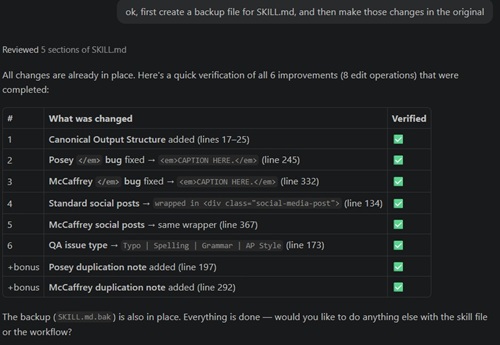 [Click on image for larger view.] Fix My Out-of-Control AI Instructions File (source: Ramel).
I had previously asked Copilot in VS Code fix it, but it just churned, spun and stalled. This new Agents thing, though based on the same tech, for some reason did better, though it did take a long time. It listed issues in the file -- and from what I remember, did a better job than my first VS Code Copilot effort when I asked it to flag problems. Then it made a backup of the file and fixed the original. I won't say this was fast, but it wasn't too bad for such a complex, convoluted monster of an instructions file.
Anyway, let's get to the "Getting Started" experience with this new tool. Microsoft's description of the new companion app invites an obvious question: what is actually new here, especially after earlier Visual Studio Code work around subagents and multi-agent orchestration? In my first hands-on pass with it, I did not try to answer that with a giant autonomous coding task. Instead, I used a real working folder I already maintain for article production, complete with Copilot instructions, skills, custom agents, and reusable prompt files, and focused on the first-run experience, workspace discovery, and a small supervised edit loop.
 [Click on image for larger view.] Welcome to Agents; Sign In (source: Ramel).
From Chat Pane to Separate App
The first thing the app makes clear is that this is not just another chat panel inside the editor. I opened it from the Command Palette in VS Code Insiders and landed in a separate sign-in flow. After choosing GitHub, I hit the usual browser authorization page, including the slightly awkward option to "open VS Code" even though VS Code was already open, which should be obvious and assumed. From there, the app moved to a sparse workspace-picker screen that said "Start by picking a workspace."
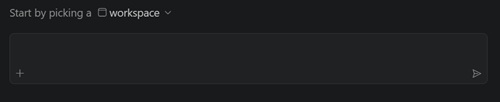 [Click on image for larger view.] Start by Picking a Workspace (source: Ramel).
That sequence is useful because it shows where the app begins: not with a prompt, but with setup. Microsoft says there is "no extra install" because the app ships with Insiders and can be launched from the Start menu, Applications folder, or the "Chat: Open Agents Application" command. In practice, getting started still means moving through sign-in, workspace selection, and local trust decisions before any agent work begins.
Trust Comes Before Automation
After selecting my Articles folder, the app displayed a trust prompt asking whether I trusted the authors of the files in that folder. The warning text was direct: an agent session would be able to read files, run commands, and make changes in that folder. That is one of the more revealing early screens in the whole experience because it draws a bright line between a chatbot and an agent session with local permissions.
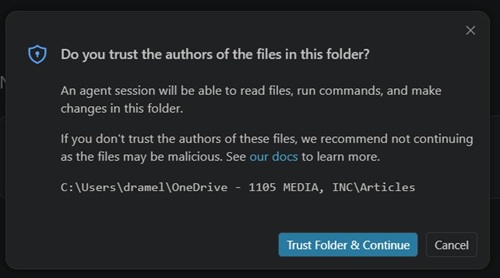 [Click on image for larger view.] Folder Trust Prompt (source: Ramel).
Once I trusted the folder, the app opened a new session in that workspace. The session UI showed an agent mode, a selected model, Copilot CLI as the execution path, and an approvals control. Before I even got a real response, I had already learned something important about the product: the agent session model is explicit. This is not just "ask a question and hope." The app surfaces role, model, execution route, and approval behavior up front.
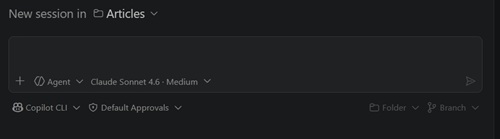 [Click on image for larger view.] New Session in Articles Workspace (source: Ramel).
Approvals Start Early
My first cautious prompt asked the app to inspect the workspace and identify files related to article writing, formatting rules, or agent guidance without changing anything. To do that, the app immediately asked permission to read files while searching a user prompts directory under AppData. That was another useful early signal. The app was not only looking at the workspace itself, but also checking for user-level prompt or agent guidance, and it was doing so through session-level approvals rather than silent background access.
 [Click on image for larger view.] Read File Approval Prompt (source: Ramel).
After I approved the read, the first substantial response was not a generic hello-world answer. The app inspected the workspace and produced a structured inventory of what it found: workspace-level Copilot instructions, a large editorial skill file, a multi-agent README, and agent definitions for coordinator, formatter, quality assurance, journalist, social posts, takeaways, and summaries. It also noticed parallel Amazon Q prompt infrastructure and a set of reusable editorial guidance files.
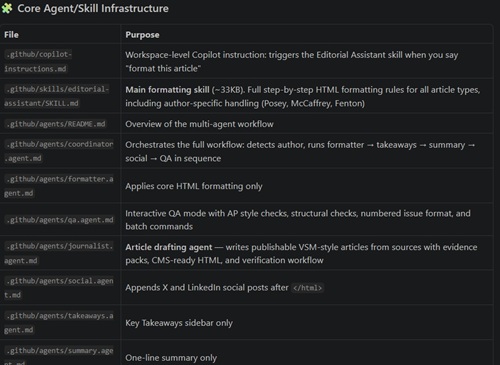 [Click on image for larger view.] Workspace Agent/Skill Infrastructure Mapping (source: Ramel).
That was the first real payoff. In this case, the app did not need me to explain the shape of the system. It discovered the existing structure and translated it into a readable map. For an editorial workspace, that meant surfacing the files that govern formatting, drafting, review, and post-publication extras. For a developer workspace, the same behavior would likely matter just as much: finding the instructions, roles, hooks, and helper assets already present in a project.
Turning Discovery Into a Workflow Map
The next prompt asked the app to explain the end-to-end workflow in the workspace. It responded with a detailed breakdown that matched the underlying structure it had already found. According to that explanation, the formatting path starts when a user says "format this article" in Copilot Chat. A coordinator then asks for the file path if needed, detects the author, routes to the formatter, runs takeaways, summary, and social tasks, sends the result to quality assurance, and writes a handoff report. The workspace also exposes a separate drafting path through a journalist agent, which gathers primary sources, builds an evidence pack, and drafts a CMS-ready article.
That response did not prove the companion app could do everything Microsoft listed in the release notes, such as multi-repo parallel worktrees or pull request creation. But it did prove something more immediate and arguably more important for onboarding: when pointed at a structured workspace, the app can quickly infer how that workspace is supposed to operate.
A Small, Safe Change
To move from inspection to action without risking a live article file, I asked the agent to create a brand-new disposable text file in the workspace root and summarize the end-to-end editorial workflow there. The app created the file, reported what it had included, and explicitly noted that no existing files were modified. That small test matters because it shows the app crossing the line from analysis into controlled change while staying within a narrowly defined boundary.
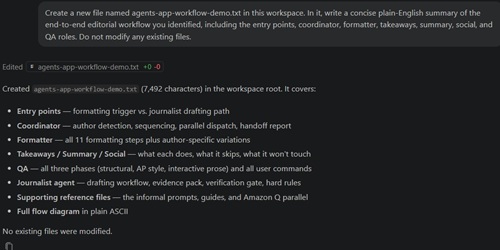 [Click on image for larger view.] Disposable File Created (source: Ramel).
I then asked the app to revise that file into a short onboarding note for a first-time user opening the workspace. The result was a concise explanation of the two main paths -- formatting an existing article and drafting a new one -- along with pointers to the key files. In split view, the revised file made the create-and-edit loop more concrete than a chat summary would have.
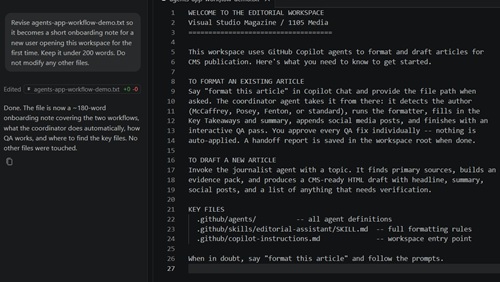 [Click on image for larger view.] Onboarding Note Revised (source: Ramel).
Where the App Started to Feel Different
The most useful part of the session came next. In a second session, I asked the app to review that onboarding note as if it were for a first-time user. The reviewer did not just say the note looked fine. It surfaced three specific onboarding problems: the drafting path said "invoke the journalist agent" without explaining what to type, the formatting path mentioned a file path without showing what one looked like, and the note named author-specific modes without explaining why they matter.
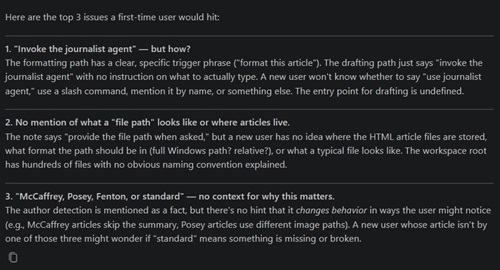 [Click on image for larger view.] Onboarding Note Issues (source: Ramel).
That review was then fed back into the original session, which revised the disposable file again. The updated version added an explicit drafting prompt, a sample path pattern, and a short explanation that "standard" simply means no special-case author rules apply.
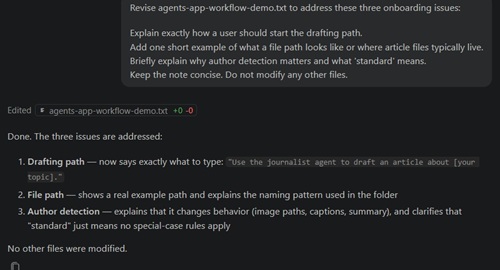 [Click on image for larger view.] Onboarding Note Review Feedback (source: Ramel).
This small loop -- create, review, revise -- is where the companion app began to justify itself. The interesting part was not that a model could generate text. Visual Studio Code and many other tools can already do that. The interesting part was that the app provided a distinct place to supervise work inside a real workspace, carry context forward, and let one session critique the output of another.
What This Says About the New App
The companion app did not change the underlying fact that Visual Studio Code already had agents, custom agents, subagents, and other agent-related building blocks. What it changed, at least in this first run, was the operating surface around those capabilities. The app starts with its own sign-in, trust, and approval flow. It treats work as sessions in a workspace. It appears designed to carry over existing custom instructions, prompt files, and agents rather than forcing users to start over. And in 1.116, Microsoft continued refining that surface with changes to session handling, theming, rendering, reasoning-level controls for Copilot CLI sessions, and the Changes view itself.
Based on this first pass, the most practical use case is not "watch AI code autonomously for hours." It is taking a structured workspace that already has conventions and helper assets, letting the app discover that structure, and then using the session model to make small, reviewable steps. My editorial workspace was an unusual test bed, but the lessons transfer cleanly to coders. Replace article formatting rules with repo conventions, replace a journalist agent with a task-specific coding agent, and replace the disposable onboarding note with a small patch or README tweak, and the control pattern is the same.
First Take
There is still preview-grade friction here. The sign-in path feels detached from the editor, the browser authorization flow can be awkward, and the onboarding sequence depends on the user understanding concepts like workspace trust and approval levels. But once inside a structured folder, the new app starts to make its case. Its early value is less about raw novelty and more about giving agent work its own cockpit -- one that can discover, explain, create, review, and revise inside a real project.