Inside TFS
Test Plans with Microsoft Test Manager 2010
Visual Studio 2010 brings testers and developers closer together and provides testers the tools they need to be able to do their job more effectively. We look at Test Plans in Microsoft Test Manager 2010 and discuss how they are used within the testing framework.
With Visual Studio 2010, Microsoft made a strong investment into bringing testers and developers closer together, and to providing testers the tools they need to be able to do their job more effectively. Manual testing, in particular, received a strong makeover.
In this column, we are going to take a look at Test Plans in Microsoft Test Manager 2010 and discuss how they are used within the testing framework.
With Visual Studio 2010 and Team Foundation Server 2010, in order to manage testing, you need to plan your testing as well as track the execution of those tests. The first step is to plan what needs to be done. This is where the Test Plan comes into play. Microsoft Test Manager 2010 is used to create and execute Test Plans.
[Click on image for larger view.] |
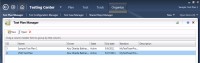
| Figure 1.Organize Tab of Microsoft Test Manager 2010 |
Figure 1 shows the Organize tab (and the Test Plan Manager sub-tab) of Microsoft Test Manager 2010. This tab is used to create your initial test plans. It is also used for creating multiple test configurations, as well as creating new test cases (which are the manual tests to run).
Test Plan Manager Tab
A Test Plan is made up of a number of different artifacts, including configuration information, build information, test suites and test cases. You can have one or more test plans per team project, depending on your test priorities. Figure 2 shows the detailed information for a particular test plan.
The Test Plan details page is broke into four different sections. The top section shows general test plan information, including: test plan name and description, area/iteration path related to this test plan, start and end dates for the test plan, and the current state of the test plan. It also contains the owner of the test plan, who is the person responsible for executing the plan.
The next section of the Test Plan is the Run Settings section. In this section, you can specify the different test settings and environments to use for manual and automated test runs, as well as the appropriate build to use. The test settings drop down box is used to configure what diagnostic data adapters should collect data during the execution of the test.
In Figure 2, for example, a test settings of "Lots of IntelliTrace" (my name for the test setting) has been created, which will gather detailed IntelliTrace information during the test execution. You can also specify what test configuration to use for testing. Creating a new test configuration is done using the Test Configuration Manager sub-tab, which we will talk about shortly.
The third section of the Test Plan is the Links section. In this section you can add links to external content by providing the appropriate URL. Finally, the Test Plan Status section shows you the current status of the Test Plan. This section shows you the current state of the tests in the test plan, as well as detailed information on tests that have failed.
Test Configuration Manager Tab
The Test Configuration Manager sub-tab is used to create the different test configurations that can be assigned to a test plan. By default, Microsoft Test Manager has one test configuration with two configuration variables with default values: "Windows 7 and IE8." If a test plan is assigned this test configuration, it tells the tester they need to be testing using Internet Explorer 8.0 on a Windows 7 machine.
You can add more configuration variables to your test configurations. Click the Manage configuration variables button to open the Manage Configuration Variables window, shown in Figure 3. Here, you can see that I’ve added a new variable named "Memory," with the different memory configuration. This allows us to now specify, in our test configurations, how much memory should be on the machine we are testing with.
To create a new test configuration, click the New button on the Test Configuration Manager toolbar (Figure 4).
Here, we have created a new test configuration and specified the appropriate configuration variables. Note that you don’t have to use all the configuration variables. For example, I could just specify the operating system and memory to use for testing. I can also set this configuration to be the default configuration used for any new test plans by checking the "Assign to new test plans" checkbox.
We have looked at how you create a test plan, and modify its run and configuration settings. Now that we have the skeleton for the test plan created, the next step is to actually make it useful by adding in test suites and test cases, which we will look at in the next column.
About the Author
Mickey Gousset spends his days as a principal consultant for Infront Consulting Group. Gousset is lead author of "Professional Application Lifecycle Management with Visual Studio 2012" (Wrox, 2012) and frequents the speaker circuit singing the praises of ALM and DevOps. He also blogs at ALM Rocks!. Gousset is one of the original Team System/ALM MVPs and has held the award since 2005.