Inside TFS
Local Workspaces in TFS 2012
A new feature in TFS 2012, Local Workspaces allows edits, renames and deletes to be done locally without any communication to the server.
Previous columns have talked about Team Foundation Version Control and workspaces, which define where code files are stored locally while being edited. Before Team Foundation Server 2012, all workspaces were considered "Server" workspaces; in essence, in a Server workspace, when a file's retrieved from TFS, TFS tracks which version of the file's on the local machine, and the file is set to read-only. By setting the file to read-only, the server is able to track exactly which version of the file is stored locally.
One drawback to Server workspaces is the ability to work offline from TFS. Each version of TFS has made strides to make offline work easier, but, by design, Server workspaces work best with an online connection into TFS.
TFS 2012 changes up the workspace options. Server workspaces are still available, and work exactly has they have in previous versions. However, TFS 2012 now contains a new type of workspace, called a Local workspace. Again, this is an oversimplification, but in a Local workspace, all the files are read/write, not read-only. The meta-data about the files is stored in a hidden folder in the root of the workspace, which allows edits, renames and deletes to be done locally without any communication to the server.
This improves the offline story with TFS significantly, as you no longer encounter issues with editing read-only files. It also makes it easier to work with other tools (such as Notepad) to edit code files. Making a change to a code file using Notepad will still mark that file as edited, which will be picked up by TFS the next time you connect.
In fact, it's this reduced "friction" for developers using Local workspaces that led Microsoft to make them the default workspace option in TFS 2012. Server workspaces are still available to those organizations that require a higher degree of control of their source files.
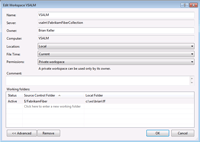
Let's look at a couple of features of Local workspaces. Figure 1 shows the Edit Workspace window in TFS 2012.
[Click on image for larger view.] |
| Figure 1. The Edit Workspace Window in TFS. |
This workspace is defined as a Local workspace by default. To change the workspace to be a Server workspace, select Server in the Location dropdown box.
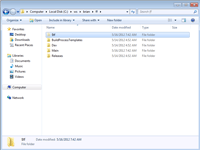
This workspace is defined as a local workspace, which means all changes to files will be tracked locally. All the metadata is stored in a hidden folder at the root of the workspace, named $tf. You can see this folder by navigating to the root of the workspace and modifying the view options to display hidden files, as shown in Figure 2.
[Click on image for larger view.] |
| Figure 2. The hidden $tf folder that contains version control metadata. |
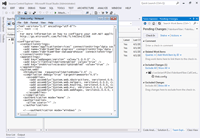
If you want to prove to yourself that Local workspaces work, open the Pending Changes page in Team Explorer 2012. Then open Windows Explorer and navigate to a file in your local workspace. Open the file using Notepad, make a change, and save the change. As soon as the change is saved, the file will appear in the Pending Changes window, under Included Changes, as shown in Figure 3.
[Click on image for larger view.] |
| Figure 3. Web.config being edited in Notepad, and appearing as a pending change. |
In Figure 3, a new comment's been added to the web.config file, using Notepad. Because this file's in a local workspace, as soon as the change is saved, it appears in the Pending Changes page of Team Explorer as a change that needs to be checked into TFS.
There are a couple of disadvantages to using Local workspaces. Specifically, the performance of a local workspace will degrade as more and more files are added to the workspace. This is due to the workspace contents needing to be scanned and compared with the last copy of the file downloaded into the workspace. The more files in the workspace, the slower this scan operation runs. If your workspace contains more than 100,000 files, you should consider using Server workspaces instead.
Local workspaces are a much-needed new feature in TFS 2012, from which all developers will benefit.
About the Author
Mickey Gousset spends his days as a principal consultant for Infront Consulting Group. Gousset is lead author of "Professional Application Lifecycle Management with Visual Studio 2012" (Wrox, 2012) and frequents the speaker circuit singing the praises of ALM and DevOps. He also blogs at ALM Rocks!. Gousset is one of the original Team System/ALM MVPs and has held the award since 2005.