News
Visual Studio Code Icon Change Completed in July 2019 Update
The always-tricky prospect of changing Visual Studio Code icons has been realized with the July update, version 1.37, of the open source, cross-platform code editor that has become wildly popular in the development community.
Microsoft previously unveiled new VS Code icons in 2017 and shortly thereafter had to reverse its decision to change colors amid negative developer feedback.
Developers are notoriously finicky about their tooling icons.
Today, however, the new icons were unveiled in the July 2019 update, version 1.37, continuing a process that started in June 22, 2016, with the issue titled "Inconsistent weight and use of color in iconography throughout UI."
That issue has received dozens of comments and revisions and was referenced in today's announcement. "We've updated all of our product icons to be uniform in style, color, and size," Microsoft said. "We went through various iterations and the community was helpful in providing feedback through every step of the process."
That feedback continues to the very hour this article was written, with the most recent comment published some 20 minutes prior reading in part: "Overall I'm more happy with a consistent icon set, though I think it'd be nice if users had the option to select a solid (based on the same design and shapes as the new icons) or thin style." It will likely never end.
Here are the icons for the stable and insiders editions, as they were previewed in the May 2019 update:
 New VS Code Icons (source: Microsoft).
Here's a comparison with the previous icon (from an earlier post when the new icon was in proposal):
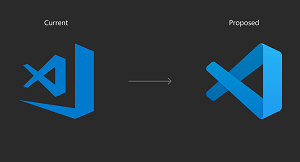 Old vs. New VS Code Icon (source: Microsoft).
Here's the icon previous to the 2017 change:

Pre-2017 VS Code Icon (source: Microsoft).
An October 2017 post titled The Icon Journey provides more background and design thinking, mentioning the "passionate feedback" received.
The July update also includes other things, like new features and functionality updates, summarized here:
- Edit string arrays in the Settings UI -- Add to string arrays directly from the Settings editor:
"The Settings editor now allows editing array-of-string settings. The Add Item button will bring up an input box to add a new string."
- Reveal search result in File Explorer -- Quickly jump to file locations in the File Explorer:
"The file context menu in the Search view now has a Reveal in Explorer command to navigate to that file in the File Explorer."
- Show whitespace in selection -- See whitespace characters just for selected text:
"The editor.renderWhitespace setting now supports a selection option. With this option set, whitespace characters will be shown only on selected text. This is handy for quickly checking whitespace without filling the entire editor."
- Find and Replace preserves casing -- Replace text without losing letter casing:
"You can now preserve case when doing replacement in the editor's Find widget. The feature is turned on when the Preserve Case option (AB button) is turned on in the editor's Replace input box. Currently VS Code only supports preserve Full Upper Case, Full Lower Case, and Title Case."
- Terminal search UX improvements -- More intuitive bottom-up search order for the terminal:
"Previously searching within the terminal would start at the top of the terminal's viewport and search downwards. When it reached the bottom, it would wrap to the top. The new behavior aligns with several other terminal emulators and starts from the bottom of the buffer and searches upwards, leading to a much less disorienting experience."
- Better SCSS @import navigation -- VS Code now checks more locations for SCSS files:
"VS Code used to resolve SCSS imports statically. For example, @import './foo' would resolve to _foo.scss. However, SCSS is more flexible in the way it resolves imports, allowing ./foo to resolve to one of the five locations: foo.scss, _foo.scss, foo/index.scss, foo/_index.scss and foo.css."
- Remote Development tutorials -- New step-by-step tutorials for working over SSH and in WSL:
"There are new step-by-step tutorials to walk you through running Visual Studio Code with the Remote Development extensions:
- Remote via SSH -- Connect to remote and virtual machines with Visual Studio Code via SSH.
- Working in WSL -- Run Visual Studio Code in Windows Subsystem for Linux.
The new VS Code update is also presented in a more entertaining style by Brian Clark, a Microsoft developer advocate, in a video.
VS Code development is carried out on GitHub.
About the Author
David Ramel is an editor and writer at Converge 360.