Quickly get started with your own projects by exporting any sample to a fresh Visual Studio project that references the same model cache, preventing duplicate downloads.
"Part of the motivation behind the Gallery was exposing developers to the host of benefits that come with on-device AI," Microsoft said in December. "Some of these benefits include improved data security and privacy, increased control and parameterization, and no dependence on an internet connection or third-party cloud provider."
 [Click on image for larger view.] The AI Dev Gallery (source: Microsoft).
Samples
Yesterday's new post highlights more than 25 interactive local AI samples that demonstrate different AI capabilities, including:
- RAG (Retrieval-Augmented Generation): Implementations that combine search with generative AI.
- Chat interfaces: Powered by various local models.
- Object detection: Samples for identifying objects in images.
- Image generation: Using stable diffusion models.
- Text-to-speech and speech-to-text: Conversion capabilities.
- Semantic search: For finding conceptually related content.
- Document summarization and analysis: Tools for extracting key insights from documents.
 [Click on image for larger view.] The AI Dev Gallery App (source: Ramel).
Upon opening the app you are presented with the screen above, from which you can choose to browse samples.
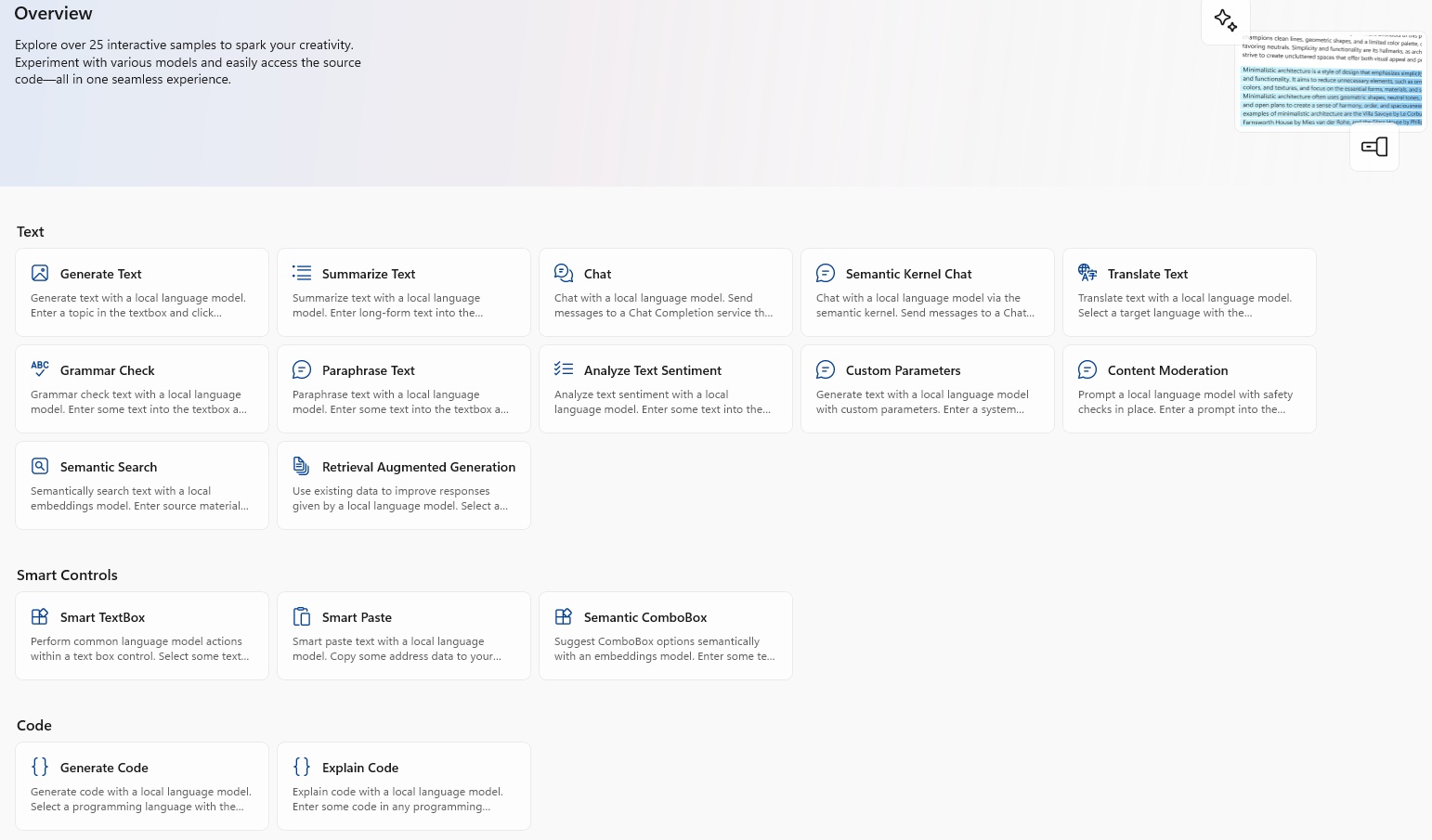 [Click on image for larger view.] Samples (source: Ramel).
There are samples for text, code, images and audio/video, with functionality including content generation, summarization, explain code, detect faces, transcribe audio/video and much more. There are also "Smart Controls" for TextBox, Smart Paste and Semantic ComboBox.
Microsoft noted: "One of the most powerful features of the AI Dev Gallery is the ability to view the C# source code behind each sample and export it as a standalone Visual Studio project with a single click."
That feature bridges the gap between experimentation and implementation, Microsoft said, allowing you to:
- Explore how each AI capability is implemented in C#
- Understand the patterns and best practices for AI integration
- Export the code as a complete, buildable project
- Use the exported code as a starting point for your own applications
Models
Along with the Samples view there is a Models section with categories for Language, Multimodal, Generative, Embedding, Images, and Audio. In Language, for example, are Phi 4 Mini, Phi 3.5 Mini, Phi 3 Mini, Phi 3 Medium and Mistral models, while Audio has only Whisper. Users are presented with the opportunity to manage models, specifying where they are cached on disk, along with a diagnostics and feedback opt-in.
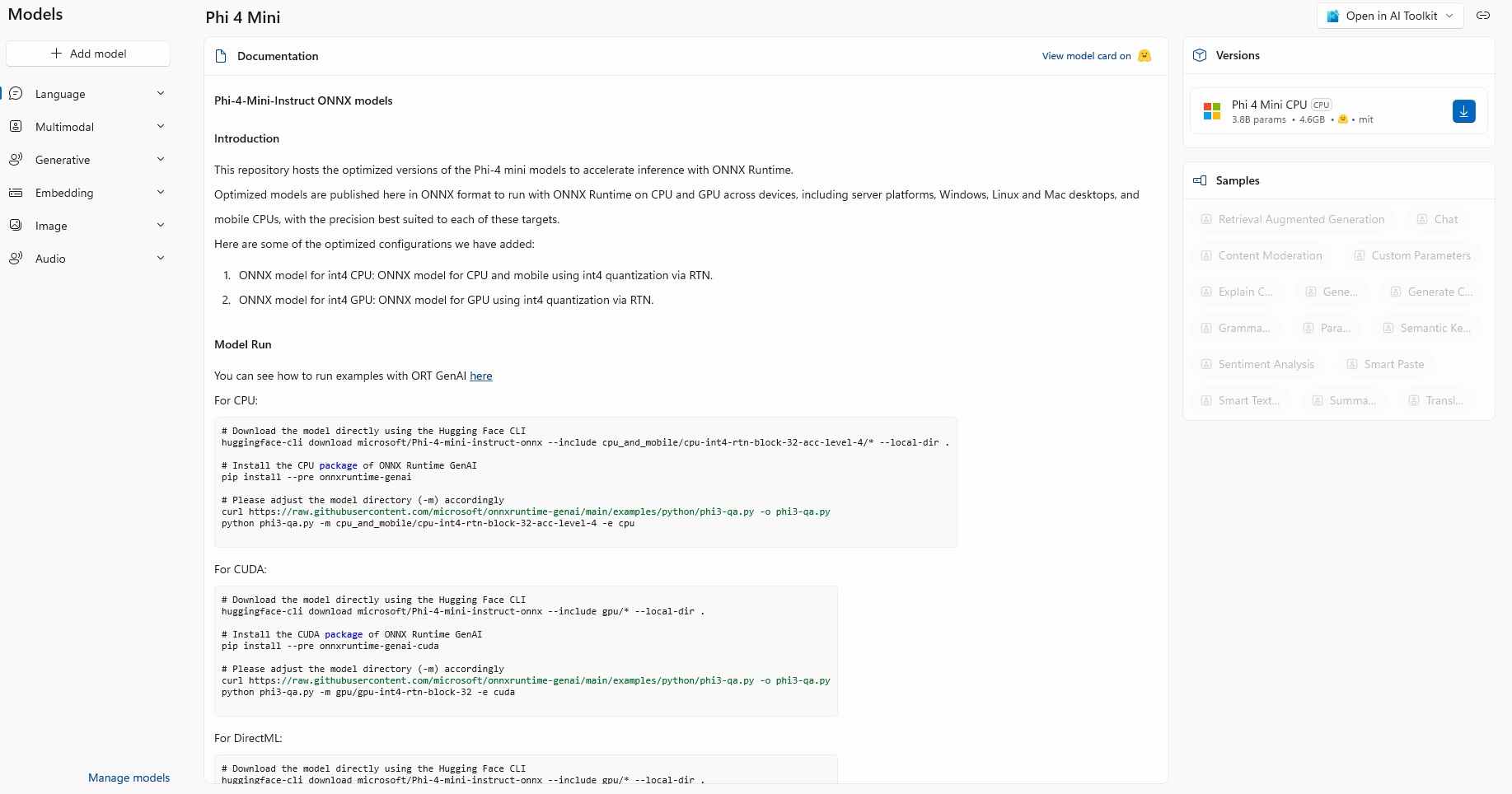 [Click on image for larger view.] Models (source: Ramel).
There is an option to open a model in the AI Toolkit, with options for bulk run, playground or prompt builder. Choosing that option pops up a dialog to install the AI Toolkit for Visual Studio Code extension.
Using that tool in VS Code, you can open a model catalog if you have a data provider registered that can provide view data, along with other tools that could be offered by a data provider. You own local models can serve as data providers, or they could come from Azure AI/Azure OpenAI or Hugging Face.
It's supposed to pass context -- such as the model you chose -- to VS Code, opening it in the AI Toolkit's interface, but that didn't happen for me. I didn't troubleshoot.
You can download models, but for Phi 4 Mini CPU, for one example, you're looking at a 4.6GB download.
WCR APIs
Along with the Samples and Models sections is a WCR APIs section with this overview: "The Windows Copilot Runtime provides developers with a comprehensive suite of AI-powered features and APIs, enabling seamless integration of AI capabilities into their applications without the complexities of sourcing, deploying, or fine-tuning their own machine learning models."
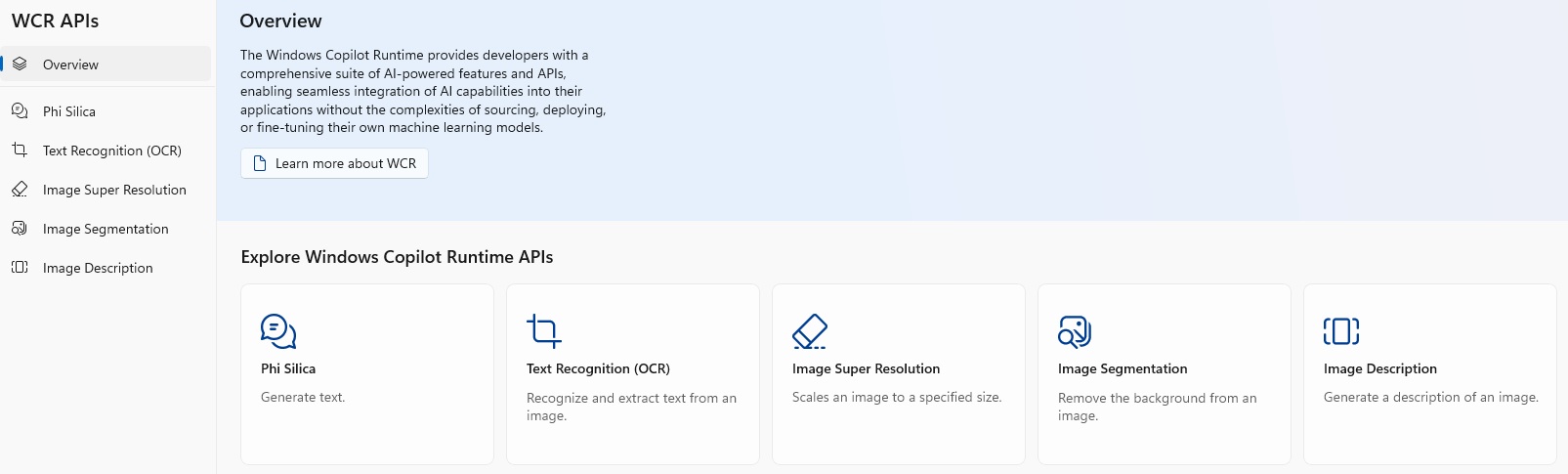 [Click on image for larger view.] WCR APIs (source: Ramel).
Those features and APIs include Phi Silica for generating text, Text Recognition (OCR), Image Super Resolution, Image Segmentation and Image Description.
However, to use those features, you must have a Copilot+ PC and Windows 11 Insider Preview Build 26120.3073 (Dev or Beta Channel), though you can still view the code and export a sample without one.
All the WCR APIs work with the Windows App SDK. The app says: "The Windows App SDK experimental channel includes APIs and features in early stages of development. All APIs in the experimental channel are subject to extensive revisions and breaking changes and may be removed from subsequent releases at any time. Experimental features are not supported for use in production environments and apps that use them cannot be published to the Microsoft Store."
Still in Preview
The app enjoys a 5.0 rating, but was only reviewed by five users. The app is available on PC, Mobile, Xbox console, Surface Hub and HoloLens, requiring Windows 10 version 17763.0 or higher.
"The AI Dev Gallery represents a significant step forward in making AI development accessible to .NET developers," Microsoft said in yesterday's post. "By providing interactive samples, easy model access, and exportable code, it removes many of the barriers that have traditionally made AI integration challenging.
"Whether you're new to AI or an experienced developer looking to explore new capabilities, the AI Dev Gallery provides a comprehensive environment for learning, experimentation, and implementation."