News
Copilot Agent Mode Preview Highlights New Visual Studio 17.14 Release
Agent mode, now in public preview for Visual Studio 17.14, marks a major step forward for AI-assisted development. Unlike previous Copilot features, agent mode can autonomously plan, edit, iterate, and invoke trusted tools-completing complex coding tasks from a single natural language prompt.
It furthers one of the hottest area of GenAI right now, the practice of vibe coding, referring to a style of AI-dependent programming where developers (and even non-coders) interact with AI tools-mainly through conversational prompts-to describe, build, and refine applications, often letting the AI handle most of the technical details.
"Agent mode is now available in public preview for all users in Visual Studio 17.14," announced Microsoft in a May 13 post. "Agent mode in Visual Studio allows you to define tasks using natural language, with Copilot autonomously planning, editing your codebase, invoking tools, and iterating to resolve issues. Unlike Copilot Chat or Edits, agent mode doesn't stop at one suggestion or file edit but works iteratively until the task is complete."
As usual, this advanced functionality appeared in Visual Studio Code first (see the April article, "VS Code v1.99 Is All About Copilot Chat AI, Including Agent Mode").
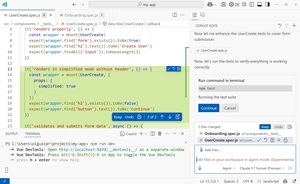 [Click on image for larger view.] Agent Mode Using Tools in VS Code (source: Microsoft).
Agent mode was also highlighted in a recent GitHub hands-on video deep dive into models and modes (see the article, "GitHub Devs Go Hands-On: Comparing Copilot AI Models Across Modes").
"Agent mode is just so good, honestly," said GitHub's Kedasha Kerr, who added at another point in the video, "And then agent mode is when you just want to vibe -- you just want things done. So you just use agent mode to get it done for you."
Other Chat modes include Ask and Edit. Microsoft today said when determining if agent mode is the right tool for the job, developers should consider the following:
- Edit scope: Agent mode takes the reins, autonomously searching your codebase and determining the relevant context and files to edit.
- Task complexity: For intricate tasks that go beyond simple code edits, agent mode shines. It handles tool invocations and terminal commands, making it ideal for complex projects.
- Duration: Agent mode is thorough, involving multiple steps to process a request. It might take longer to get a response as it determines the context, plans the action, and more.
- Self-iteration: One of the standout features of agent mode is its ability to evaluate the outcome of generated edits and iterate multiple times to resolve intermediate issues.
- Multiple requests: Depending on the complexity of the task, agent mode might result in multiple requests to the backend from a single prompt.
Good prompts, meanwhile, include:
- "Add error handling to this API"
- "Convert this project to use environment variables"
- "Write tests for this class and fix anything that fails"
- "Add structured logging with Serilog"
- "Replace HttpClient with IHttpClientFactory"
Another May 13 post highlights other AI functionality:
- MCP Support (preview): Model Context Protocol (MCP) support provides the Copilot agent structured access to tools, data, and resources. It's like a universal adaptor for AI applications that lets you connect to other data and tools without needing to build custom connections to each data source. MCP Support is in public preview and can be enabled in the preview settings today.
- AI doc comment generation: Automatically generate doc comments for C++ and C# functions. Simply type what would trigger your doc comment format (such as ///) and Copilot suggestions will automatically fill out the function description based on the contents of the function. Read the blog post to learn more.
- Next Edit Suggestion (NES): NES leverages the previous edits made and predicts the next edit to come, whether it's an insertion, deletion, or mix of both. Unlike code completions, which are limited to generating suggestions at your caret location, NES can support you anywhere in your file, where the next edit is most likely to occur. NES can be enabled in the settings.
As far as other new features and functionality, the announcement post and release notes indicated v17.14 includes:
-
Smarter Exception and Variable Analysis: Exception and variable analysis now leverage project context for more accurate error resolution, helping you quickly identify and resolve code issues.
-
Copilot Chat Integration in Parallel Stacks: The Parallel Stacks window now integrates with Copilot Chat, providing AI-powered summaries and insights into thread activity for easier multi-threaded debugging.
-
Syntax Highlighting in IEnumerable Visualizer: LINQ expression editing now features syntax highlighting, making complex queries easier to read and maintain.
-
Live Preview at Design Time: See UI changes in real time for .NET MAUI and WPF apps, improving the workflow for designing and refining user interfaces.
-
New Debugger for .NET MAUI Apps: The Mono debug engine is now integrated into the Visual Studio Core debugger, delivering a more robust debugging experience for .NET MAUI projects.
-
Show Datatips for LINQ Expressions: Enhanced debugging with clause-hovering datatips for LINQ expressions, helping you understand and troubleshoot queries more efficiently.
-
Zero-Length Array Allocation Insights: The .NET Allocation Tool now identifies zero-length array allocations, aiding in memory optimization and performance tuning.
-
C++ Dynamic Debugging: Full debuggability for optimized C++ code, allowing you to debug release builds without sacrificing performance.
-
Unreal Engine Blueprints Debugger: Debug Unreal Engine Blueprints directly in Visual Studio, with stack traces and node values available in call stacks and local variables.
-
Address Sanitizer Improvements: Enhanced stability and quality for Address Sanitizer, with the toolchain now instrumented and tested for memory safety on each pull request.
-
Git Tooling Enhancements:
- View outgoing/incoming commits directly in the Git Repository window.
- Option to keep the Git Repository window open between restarts.
- Customize the initial default branch name when creating new repositories.
-
Preserve Font Preferences Across Themes: Your font settings are now maintained when switching between Visual Studio themes.
-
Teams Toolkit Update: Updates and improvements to the Teams Toolkit for building collaborative apps.
-
Install Extension Packs: Easily install groups of related extensions in one step, streamlining environment setup.
-
SDK-Style SQL Projects in SSDT: Use SDK-style SQL projects in SQL Server Data Tools for improved database development workflows.
-
New UWP .NET 9 MSTest Project Template: Quickly start new UWP projects with MSTest support for .NET 9.
-
Monthly Release Cadence: Visual Studio now ships stable releases every month, bringing new features and improvements to developers faster than ever.
About the Author
David Ramel is an editor and writer at Converge 360.