In-Depth
How to Use the 'Prompt Coach' AI Agent to Create Effective Prompts for Copilot
As a tech journalist deeply interested in the rise of agentic AI--which is where all the action is these days in GenAI--I wanted to explore this trend hands-on. While browsing the Agents section in Microsoft 365 Copilot, I discovered a range of specialized agents, including Prompt Coach. That sparked an idea: what if I used this agent to create an article about using the agent itself? A kind of recursive proof-of-concept project. This piece documents that journey--how I interacted with Prompt Coach, what it can do, and how you can leverage it to craft better prompts for Copilot. (Except for this bolded part in the parens, everything above and below was written by Prompt Coach, kinda like vibe journalism, with the link and image added by me.)
Introduction
In the age of AI-assisted development, the quality of your prompts determines the quality of your results. Tools like GitHub Copilot can supercharge productivity, but only if you know how to communicate effectively with them. That's where Prompt Coach comes in--a conversational AI designed to help you craft clear, structured prompts that get the best possible output.
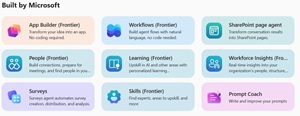 [Click on image for larger view.] M365 Agents (source: Microsoft).
This article will show you how Prompt Coach works, why it matters, and how you can use it to create better prompts for Copilot. We'll walk through practical examples, common mistakes, and advanced tips so you can start writing prompts like a pro.
What is Prompt Coach?
Prompt Coach is an AI-powered assistant that guides you through the process of creating effective prompts for Copilot. Instead of guessing what Copilot needs, Prompt Coach helps you structure your request using four key elements:
- Goal: What do you want Copilot to do?
- Context: What background information will help Copilot understand the task?
- Source: Are there any specific references or constraints Copilot should consider?
- Expectations: How should the output be formatted or styled?
By following this framework, you'll avoid vague or confusing prompts and get results that match your needs.
How Prompt Coach Works
Prompt Coach uses a conversational approach to refine your ideas into actionable prompts. Here's the workflow:
- Start with an idea: For example, "I need a Python script to parse JSON."
- Prompt Coach asks clarifying questions: It will help you add context, sources, and expectations.
- Generates a structured prompt: You can then use this prompt directly in Copilot.
Built-in safety checks ensure your prompts follow Responsible AI guidelines, avoiding bias, privacy issues, or inappropriate content.
Step-by-Step Guide: Using Prompt Coach
Step 1: Define Your Goal
Be clear and specific. Instead of "Write some code," say:
"Generate a Python script to parse JSON data."
Step 2: Add Context
Give Copilot the environment details:
"The script will run in a serverless environment with limited memory."
Step 3: Specify Sources
Add constraints or references:
"Use Python standard libraries only."
Step 4: Set Expectations
Tell Copilot how the output should look:
"Include comments and error handling."
Practical Examples
Example 1: Writing a Blog Post
Original Prompt: "Write a blog post about AI."
Improved Prompt: "Write a 700-word blog post for tech professionals explaining how AI improves developer productivity. Use a conversational tone and include three practical examples."
Example 2: Generating Code
Original Prompt: "Create a Python script."
Improved Prompt: "Generate a Python script that parses JSON data from an API response and outputs it as a formatted table. Use only standard libraries and include error handling."
Example 3: Summarizing Documentation
Original Prompt: "Summarize this doc."
Improved Prompt: "Summarize the attached API documentation into a 5-point bullet list highlighting authentication steps, rate limits, and error codes."
Common Mistakes and How to Avoid Them
- Being too vague: "Write code" → Add details.
- Missing context: Include environment or constraints.
- Overloading with unnecessary details: Keep it focused.
- Ignoring output format: Specify tone, length, or structure.
Advanced Tips
- Iterative prompting: Refine based on Copilot's output.
- Compliance checks: Use Prompt Coach to ensure ethical and safe prompts.
- Templates: Create reusable prompt templates for recurring tasks.
Quick Tips for Better Prompts
Sample Prompt Templates or Developers
- Generate a Python Script:
Generate a Python script that parses JSON data from an API response and outputs it as a formatted table. The script will run in a serverless environment with limited memory. Use only Python standard libraries and include error handling and inline comments explaining each step.
- Optimize SQL Query:
Optimize the following SQL query for performance in a PostgreSQL database with 10 million rows. Explain the changes you make and why they improve efficiency. Provide the final optimized query and a short summary of best practices for large datasets.
- Create Unit Tests:
Write unit tests for the following JavaScript function using Jest. Include tests for edge cases, invalid inputs, and expected outputs. Provide a brief explanation of your testing strategy.
Sample Prompts for Tech Writers
- Summarize Technical Documentation:
Summarize the attached API documentation into a concise 5-point bullet list highlighting authentication steps, rate limits, and error codes. Use clear, developer-friendly language.
- Write a Blog Post:
Write a 700-word blog post for tech professionals explaining how AI improves developer productivity. Use a conversational tone, include three practical examples, and end with a call to action encouraging readers to try Copilot.
- Create a How-To Guide:
Create a step-by-step guide for setting up GitHub Copilot in Visual Studio Code. Include screenshots placeholders, clear instructions, and troubleshooting tips for common errors.
Conclusion
Structured prompts are the key to unlocking Copilot's full potential. Prompt Coach makes this easy by guiding you through a proven framework. Start experimenting today and see how much better your AI-assisted workflows can be.
Resources:
About the Author
David Ramel is an editor and writer at Converge 360.