In-Depth
Getting My OpenClaw Around VS Code
There's a lot of buzz around OpenClaw lately, so I had to check it out in my favorite editor, VS Code. Turns out this is a nascent space, not much being done with the new it agentic AI tool and the most popular coding tool of all time.
So I started out with the basics, just getting OpenClaw installed, authenticated, connected, and working alongside VS Code before worrying about extensions or advanced workflows.
What OpenClaw Is
The viral, open-source OpenClaw, as described in its official documentation, is a self-hosted gateway that connects channels, sessions, tools, and clients to an AI assistant. Its install flow and onboarding wizard focus on standing up the runtime, configuring a model provider, setting up a local gateway and workspace, and then using a browser-based dashboard as the main control UI.
Basically, it acts as a "personal operating system" for AI. It was created by Peter Steinberger (who recently joined OpenAI) and has exploded in popularity, recently becoming one of the most-starred projects on GitHub. Unlike a standard chatbot (like ChatGPT or Claude) that just talks to you in a browser, OpenClaw is a local orchestration layer designed to "actually do things" by controlling your computer and connecting to your real-world apps.
Who is it for? Well:
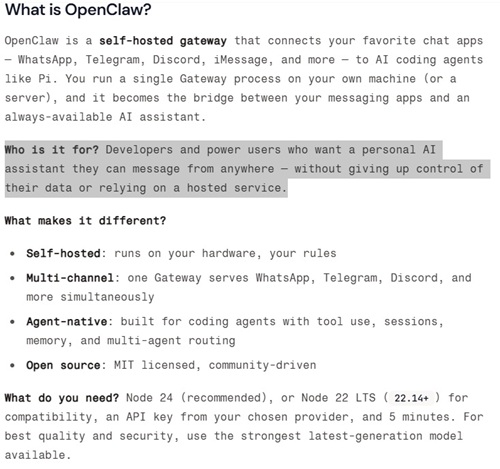 [Click on image for larger view.] What It Is and Who It Is For (source: OpenClaw).
The project's own setup story starts with the gateway, the workspace, the dashboard, and optional channels, not with a single canonical editor extension. That does not mean VS Code is out of the picture. It just means the editor currently looks more like one possible client environment around the core OpenClaw runtime than the center of the product story.
The relationship between OpenClaw and VS Code is characterized by a "bridge" approach rather than a full, built-in integration. While OpenClaw remains primarily a CLI (Command Line Interface) and background process, it connects to VS Code in three distinct ways:
- Official Extension: A dedicated "remote control" provided by OpenKnot that adds a status bar indicator, a model setup wizard for API keys, and a one-click connection to the agent directly within the editor.
- Node-Based Architecture: The agent treats the editor as an active "endpoint," allowing it to visually monitor your workspace, read open files, and execute terminal commands like
npm test or git commit on your behalf.
- Open-Source Alternative: Positioned as the community-driven rival to proprietary tools like Claude Code and GitHub Copilot, it uses local JSON logs and community visualizers to give users transparent, local control over their coding environment.
Why I Went Baseline First
That is why I did not start by trying every extension I could find. I wanted to establish the baseline first: could I get OpenClaw installed, authenticated, connected, and working alongside VS Code in a meaningful way before adding more layers? Using native Windows 11, I ran the installer from a VS Code terminal, stepped through onboarding, chose the OpenAI Codex ChatGPT OAuth route, kept the default model, and worked through the local gateway setup.
Before I even got to the actual OpenClaw install, I had to make sure the machine met the basic prerequisites. In my case that meant confirming I had a recent Node.js version already installed, along with npm. Git turned out to be a different story. On Windows, OpenClaw's installer noticed Git was missing and automatically bootstrapped a user-local portable copy. That made the setup more self-sufficient, but it also underscored that this is not a lightweight extension install. There is real runtime plumbing involved before you ever get to the dashboard or the actual agent.
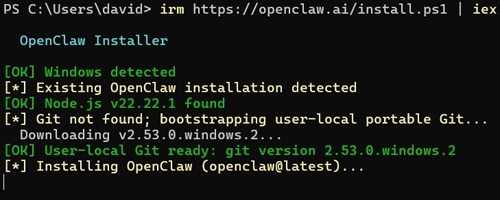 [Click on image for larger view.] Getting Git (source: Ramel).
The process was not entirely smooth. Even after onboarding reported success, the local dashboard was not actually responding until I manually forced the gateway to start.
At one point I was juggling three PowerShell windows at the same time (didn't understand why three were required but just did what ChatGPT tole me to do), as well as the ChatGPT chat tab, VS Code itself and various other browser tabs for email authentication and other stuff. A lot of moving pieces.
Along the way, the local listener came up and the dashboard became reachable. I also had to deal with the local tokenized connection model, meaning I needed the gateway token before the dashboard side would connect cleanly. None of that is fatal, but it does make clear that this is not yet a one-click extension story.
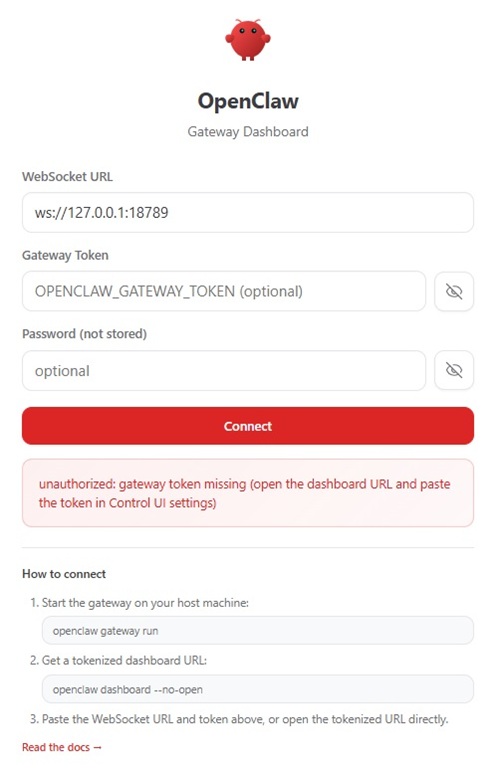 Token Needed (source: Ramel).
Some of the friction was also just the nature of the setup. OpenClaw's own messaging throughout the process was playful, which gave the whole exercise a lighter tone, though the actual work still involved real runtime, auth, and workspace plumbing.
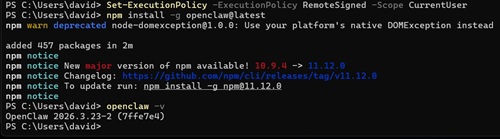 [Click on image for larger view.] Plumbing (source: Ramel).
It was nice to at last get a browser chat activated. I kept thinking, "just setting up shouldn't be this complicated."
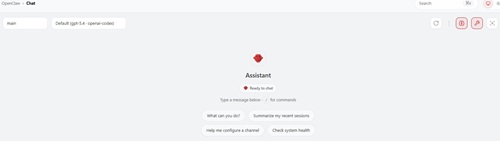 [Click on image for larger view.] Let's Chat (source: Ramel).
How VS Code Fit Into the Test
One of the first practical things I learned is that OpenClaw follows its own configured workspace. It did not automatically pick up whatever folder I had open in VS Code. So to keep the proof of concept simple and fair, I aligned my test files with the OpenClaw workspace and used VS Code around that. Once I did, the two tools clearly could interact: OpenClaw could see the workspace, read and write files there, run commands, and work on content I created in that folder.
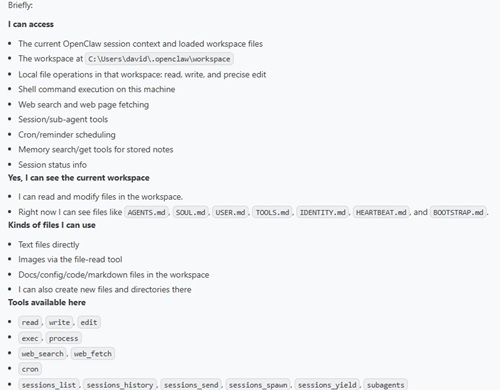 [Click on image for larger view.] Access (source: Ramel).
I had to shift my PoC Markdown files around to fit OpenClaw on the advice of AI counsel (though documentation indicates you can point it to other folders/files).
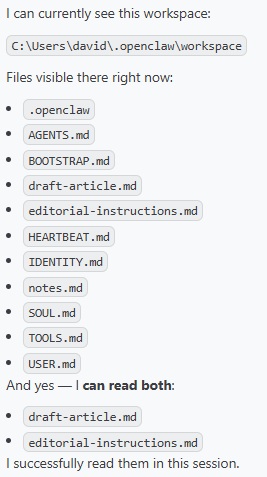 OpenClaw Workspace (source: Ramel).
That distinction matters because it gets at what "OpenClaw in VS Code" currently means. In this early-stage setup, it did not mean OpenClaw simply inheriting whatever project I opened in the editor. It meant using VS Code as the terminal and editing environment around a running OpenClaw gateway and its configured workspace. Once I adjusted to that model, things started making more sense.
What I Got It To Do
For the first test, I created a rough markdown draft and a simple instructions file, then had OpenClaw revise the draft and save it back into the workspace. That proved the basic loop: file in, instructions applied, file out. The early results were mixed. On one pass it compressed the text more aggressively than I wanted. On a second pass it responded to follow-up guidance and revised more conservatively. That was a useful finding in itself. OpenClaw could take direction, but it also clearly needed direction.
The more interesting result came when I pointed it at a concrete source URL and asked it to shift focus to the Visual Studio Code 1.112 release notes. That worked better. OpenClaw produced a short article-style draft with a specific headline and grouped paragraphs around agent-related changes, integrated browser updates, and local Model Context Protocol server sandboxing. It was still a draft, and still something a human editor would want to shape further, but it moved beyond simple cleanup and into actual source-based synthesis.
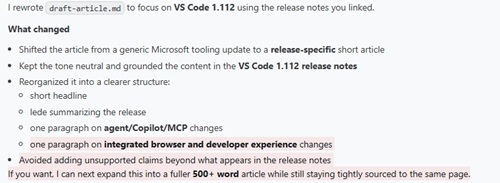 [Click on image for larger view.] Article Draft Summary (source: Ramel).
That was enough to make the starter proof of concept feel real. I was not looking for publication-ready copy from a first pass. I just wanted to know whether OpenClaw and VS Code could work together in a way that supported actual file-based work and source-driven drafting. The answer was yes.
The VS Code Extension Ecosystem
Once I had that baseline, I looked more closely at what else had been published about OpenClaw and VS Code working together. There is material out there, but not a lot of it, and certainly not a single standard path. Most of what I found lives in official docs, Visual Studio Marketplace listings, GitHub READMEs, and a scattering of community tutorials rather than in a mature body of how-to coverage. One example is a DEV post about running OpenClaw in VS Code through ACP, which is useful but also a reminder that this is still very much an experimental, moving-target ecosystem.
That made a baseline-first approach feel more useful than an extension roundup. I did not want to pretend there is already one settled way to use OpenClaw in VS Code when the current picture looks much more fragmented than that. Getting the foundation in place first seemed like the better test.
What the Available Extensions Seem to Offer
That said, the extension ecosystem is worth understanding because it points to where OpenClaw could become more polished inside VS Code. The main OpenClaw Extension mentioned earlier looks like the companion-and-control option. Its Marketplace description focuses on setup, onboarding, connection, health checks, dashboard access, configuration, and hardening workflows inside VS Code. That sounds useful for smoothing setup and day-to-day management, but it still sits on top of the underlying gateway model rather than replacing it.
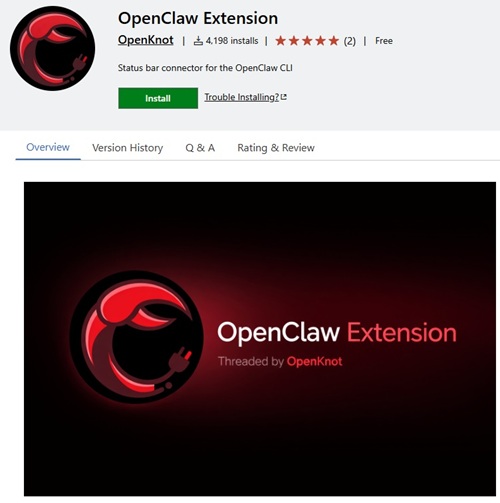 [Click on image for larger view.]OpenClaw Extension Summary (source: Ramel).
I did install that extension and toyed with it, but it didn't seem to offer much or work particularly well. It installed an OpenClaw status bar icon that takes you to the terminal workflow, showing OpenClaw status, and a sidebar (both pictured below), but I didn't really see that much value. I installed that "missing" acpx thing numerous times but the message didn't change.
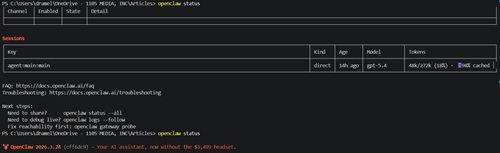 [Click on image for larger view.]Status from Clicking on OpenClaw Extension Icon (source: Ramel).
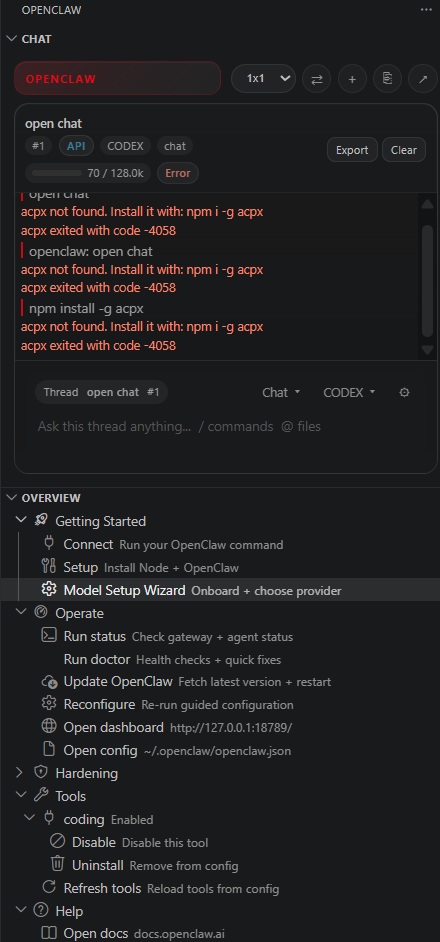 [Click on image for larger view.] OpenClaw Extension Sidebar (source: Ramel).
Note that at the time of this writing it shows about 4,200 installs, further speaking to the cutting-edge nature of this space -- not a lot of adoption, as compared to say, 210 million for Python.
Another option is OpenClaw Node for VS Code (1.1K installs), which presents itself as a secure bridge between the OpenClaw Gateway and VS Code using the VS Code API sandbox. Its feature list is much more code-centric, including file operations, search, diagnostics, definitions, references, Git actions, tests, debugging, and different agent modes. For developers who want the agent working more deeply inside the editor, that looks potentially valuable. It also looks much more aimed at coders than at writers.
Lighter options such as openclaw and OpenClaw-VSCode appear to focus more on connection management, chat-style workflows, or dashboard launching than on deep IDE-aware behavior. Then there are project and config tools like OpenClaw Studio and OpenClaw Config, which look more aimed at users building around OpenClaw, maintaining configs, or scaffolding plugins than at casual first-time users. There are currently 23 VS Code extensions in the editor's marketplace that come up with a search for "OpenClaw."
That difference in focus among the tools is important. If you are a coder looking for deeper editor-aware agent behavior, one of those extensions may add real value. If you are just trying to understand whether OpenClaw can work in a VS Code-centered setup at all, the baseline I tested gets you a meaningful answer before you add those layers.
Bottom Line
OpenClaw is interesting enough, new enough, and messy enough to be worth this kind of hands-on test. Right now, using it with VS Code feels less like following a polished standard path and more like establishing a working baseline in an emerging ecosystem. But that baseline is real. I got OpenClaw and VS Code working together, proved that OpenClaw could operate on local files in that setup, and got it to generate a usable short draft from a source URL.
Of course, my editorial workflow is not the primary use case for OpenClaw, or any agentic AI for that matter, but that's what I've been using for my hands-on series of articles that explore agentic AI tools in VS Code, just as much to provide myself with some nifty tool as to provide a PoC adaptable to coding.
Anyway, that is enough to make OpenClaw in VS Code article-worthy right now, even if the story is still more about laying groundwork than showing off a finished extension experience. And it leaves an obvious follow-up for later: once the foundation is in place, which of the available VS Code extensions actually adds the most value?