Visual Studio Toolbox
10 New Tools for Visual Studio 2026 from Mads Kristensen
In a March 23 episode of Microsoft's Visual Studio Toolbox video series, Mads Kristensen, principal product manager for Visual Studio, joined host Leslie Richardson to walk through 10 extensions and updates aimed at everyday developer pain points. The session covered everything from workspace layouts and comment rendering to CSV editing, Azure resource browsing and animated pets on the status bar.
Starting out the episode, Kristensen said the ideas came from the same places many extension authors look for inspiration: user requests, issue reports and recurring complaints. "I look at what our users are asking us for," he said. "That's my inspiration." He is well known for his continuous stream of extensions whose functionality often gets baked into the IDE.
He also explained that the projects are not one-off experiments. "They're ready for prime time," he said, describing a set of tools he uses himself and continues to refine based on community feedback.
While they might indeed add developer functionality, one of the extensions can add a little whimsy to the IDE to amuse stressed-out editors with a virtual dog that looks much like his constant companion who is pestering his partner right this minute to get an early start on the afternoon walk.
 Walking the Dog (source: Ramel).
Workspace and Navigation Tools
One of the first extensions shown was Modes, which lets developers switch Visual Studio into different operating modes such as low power, focus, performance and presenter mode. In presenter mode, interface elements become larger for demos and screen sharing. In low power mode, the extension can automatically respond to Windows battery-saving conditions by disabling background features. Focus mode strips away more distractions.
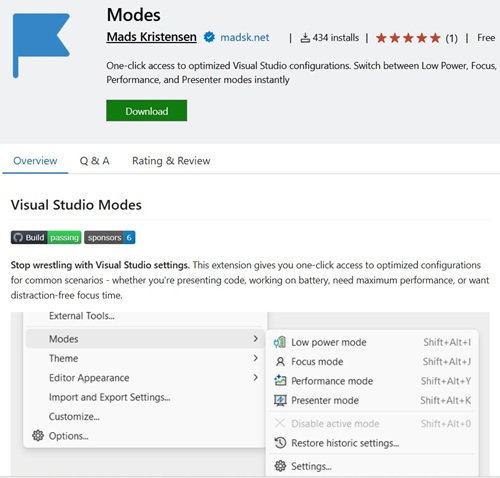 [Click on image for larger view.] Modes (source: Visual Studio Marketplace).
The extension also stores prior settings and rolls them back when a mode is turned off, along with offering backup restore options for settings changes. Richardson immediately connected the feature to a long-standing need for easily switchable layouts, saying, "it would be so great if there were different essentially modes that you could toggle between."
Another navigation-focused tool was Solution Favorites. The extension adds a virtual Favorites node under a solution, allowing developers to pin frequently used files and organize them into custom groups without moving anything physically on disk. Kristensen showed how front-end and back-end files from different folders could be grouped together for quicker access.
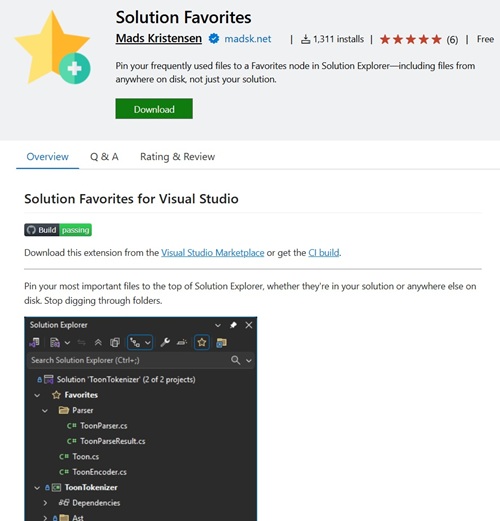 [Click on image for larger view.] Solution Favorites (source: Visual Studio Marketplace).
The underlying data lives in a JSON file rather than a real folder structure, so the feature acts as an overlay on top of the existing solution layout.
Comments, Config Files and Text Editing
Comment Studio was positioned as a broad rethink of code comments inside Visual Studio. Kristensen showed XML documentation comments collapsing into compact single-line rendered views, with support for basic Markdown formatting, links and quick editing. He also demonstrated colored task-style comments, linked file references and a new Code Anchors window for tracking comment markers such as TODO and HACK across a project.
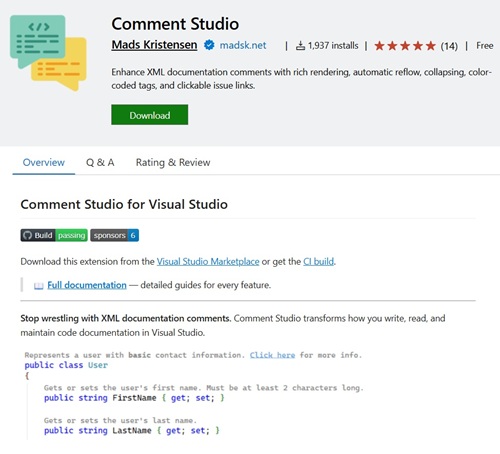 [Click on image for larger view.] Comment Studio (source: Visual Studio Marketplace).
Kristensen described the extension as "one of the bigger extensions that I've done in a long time" and said it was designed to stay responsive despite its feature set. Richardson said one part of the feature set addressed a sore spot in the built-in task list, noting, "It wasn't always consistent."
Scratch Files tackled another familiar annoyance: creating temporary files outside the context of a project. Instead of going through file templates, the extension lets developers hit Control+N to instantly create a scratch file, assign it a language mode and keep it open across sessions without having to formally save it. Kristensen also showed a shortcut for creating a scratch file adjacent to the active document, useful for notes or temporary snippets tied to a particular source file.
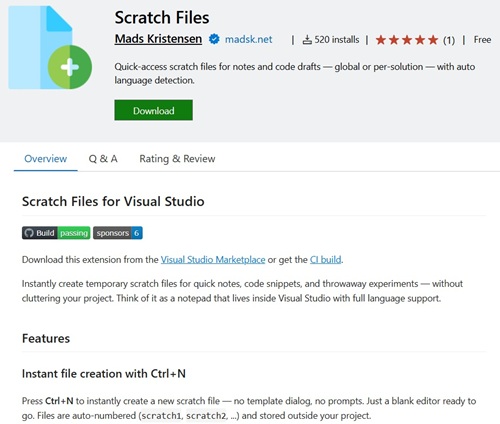 [Click on image for larger view.] Scratch Files (source: Visual Studio Marketplace).
Whitespace Visualizer built on Visual Studio's existing whitespace view by surfacing line-ending markers such as CRLF and by showing whitespace details only when text is selected. That makes it easier to inspect tabs, spaces and line endings when needed without keeping the full whitespace view turned on constantly.
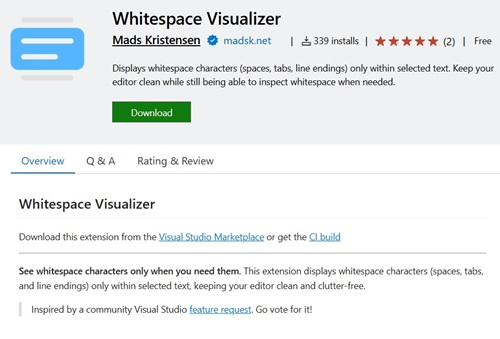 [Click on image for larger view.] Whitespace Visualizer (source: Visual Studio Marketplace).
The roundup also included an update to Kristensen's older EditorConfig Language Service extension. He showed syntax coloring, IntelliSense, validation, documentation links and file-pattern validation for .editorconfig files.
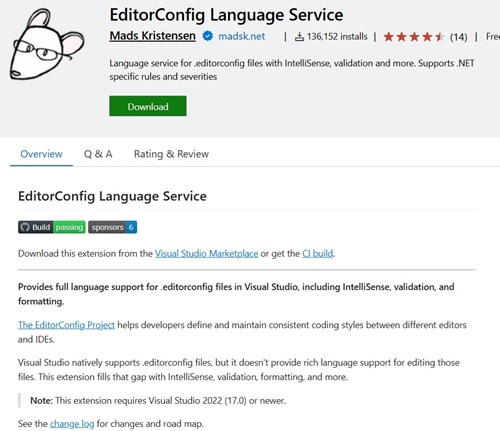 [Click on image for larger view.] EditorConfig Language Service (source: Visual Studio Marketplace).
The extension also supports contributions from other extensions, allowing them to expose their own editorconfig properties without taking direct dependencies on the language service itself.
Markdown and CSV Improvements
Markdown Lint brought best-practices validation and quick fixes into Visual Studio for Markdown files. Kristensen demonstrated inline diagnostics, code fixes for specific issues and a workflow where format document can automatically run available fixes. He also highlighted integration with editorconfig, allowing teams to carry Markdown formatting behavior with the repository instead of through a separate configuration file.
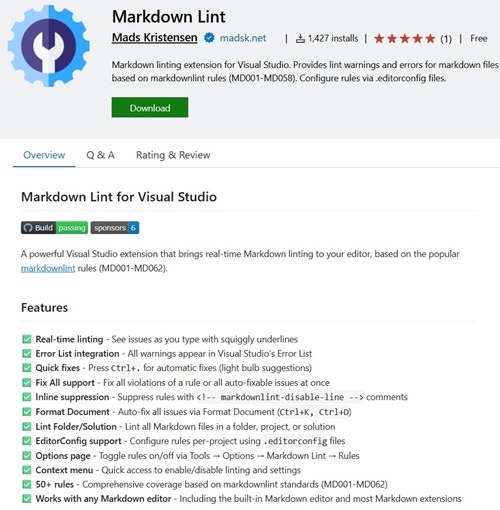 [Click on image for larger view.] Markdown Lint (source: Visual Studio Marketplace).
Richardson reacted strongly to that workflow, especially for longer documentation projects, calling the feature "so good." She explained: "I would have loved this because like a month ago I had to write this pretty long documentation
thing for MSLearn on MCP stuff and it was very long and had lots of branching paths depending on the IDE you were using, and like there were so many errors. It's really nice to have that little shortcut to just take away all the errors, make [sure] everything
looks the same way."
For developers writing docs, READMEs or Microsoft Learn-style content inside Visual Studio, the extension addresses a gap that previously might have pushed many users toward other editors.
CSV Editor addressed another scenario Kristensen said more developers use than many might expect: opening CSV data directly in Visual Studio. The extension adds syntax coloring, column alignment, alternating row colors, sorting and export options such as copying data as a Markdown table.
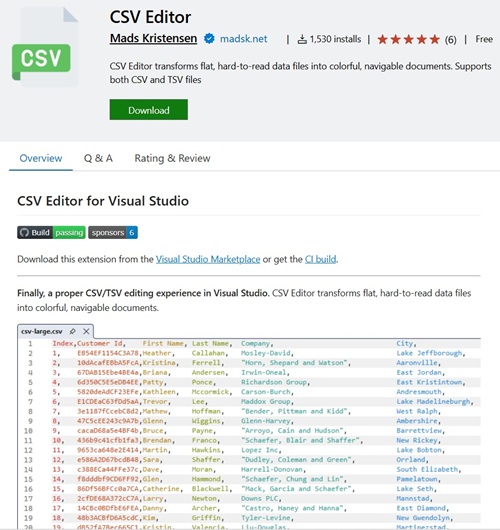 [Click on image for larger view.] CSV Editor (source: Visual Studio Marketplace).
Kristensen said the implementation only affects what is visible in the editor viewport, which helps it stay fast even with very large files. After seeing a 10,000-line file sort almost instantly, Richardson said, "That is very impressive" before discussing challenges Kristensen faced when creating the tool.
Cloud Access and a Lighter Touch
Azure Explorer brought back a capability many long-time Visual Studio users may remember from the deprecated Cloud Explorer. Kristensen showed app services, storage accounts, function apps and key vaults being browsed directly inside the IDE, along with actions such as restarting an app, opening streaming logs, browsing deployed files and downloading publish profiles.
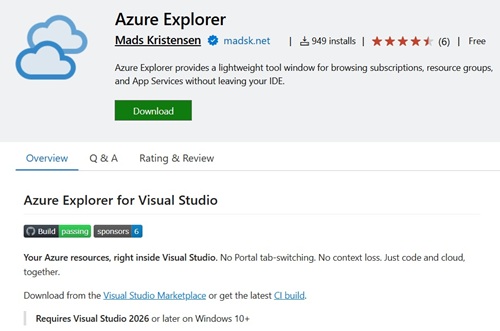 [Click on image for larger view.] Azure Explorer (source: Visual Studio Marketplace).
Richardson's reaction captured the sense of return: "Cloud Explorer, it's back." Kristensen likewise framed the extension as a response to ongoing demand from users who wanted direct Azure resource access from within Visual Studio rather than switching out to other tools.
The final extension, VS Pets, was the most playful. Borrowing inspiration from a popular Visual Studio Code pet extension, the Visual Studio version places animated pets directly on the status bar, where they can walk, run, sleep, celebrate successful builds and react sadly to failed ones. Users can choose from multiple pets, including cats, axolotls, wolves, T-Rexes and Clippy.
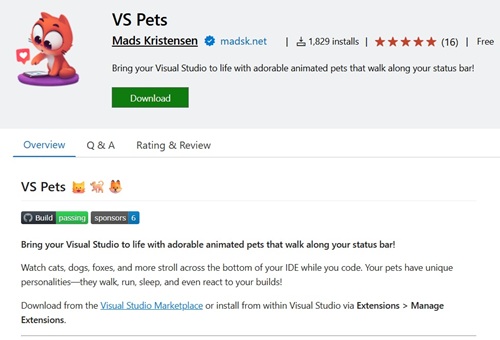 [Click on image for larger view.] VS Pets (source: Visual Studio Marketplace).
Richardson did not hide her enthusiasm. "This is bigger than the Copilot introduction as far as I'm concerned," she said. Kristensen said he also looks at what people actually download in other editors as another form of product signal, using those numbers to gauge what resonates with users in practice.
What the Roundup Suggests
Taken together, the 10 tools suggest a familiar pattern for Kristensen's extension work: start with a practical gap, ship a focused fix, then refine it with community feedback. Some address small but persistent friction points, such as temporary files, solution navigation and Markdown cleanup. Others revisit areas Visual Studio once covered, such as Azure resource browsing. And one simply makes the IDE more fun to look at.
Kristensen summed up his approach this way: " I feel like you always have to have skin in the game to create -- or for me at least -- to be on my top game to create the best features." For Visual Studio users, that translated into a set of extensions built around real workflows rather than abstract demos -- and, as noted with his projects, some of these features may eventually point toward future IDE capabilities.
About the Author
David Ramel is an editor and writer at Converge 360.