In-Depth
Hands On: VS 2026 Insiders Adds Guided Skill Building in Agent Mode
I have written several articles about how GitHub Copilot AI features often show up in VS Code before they reach the Visual Studio IDE. So when Microsoft published new guidance on Agent Skills in Visual Studio, I tried the feature with a practical goal: create a skill that helps track Copilot feature timelines across VS Code and Visual Studio.
The point of the exercise was not just the resulting tool. It was the process. Microsoft's Agent Skills documentation describes skills as reusable instruction sets that teach Copilot agents how to perform specific tasks. The same documentation says skills can be discovered from a repository or a user profile, and that a SKILL.md file provides the metadata and Markdown instructions that define the skill.
In practice, Visual Studio 2026 Insiders turned that into a guided workflow inside Copilot Chat. I used Agent Mode not only to generate code, but to help shape the skill itself: creating the SKILL.md file, filling in the instructions, reviewing generated edits and accepting changes.
Starting from the Tools and Skills Panels
The process began in Copilot Chat, where the tools icon opens a panel with two tabs: Tools and Skills. The Tools tab showed built-in integrations including GitHub Copilot, Microsoft Learn, nuget and Planning.
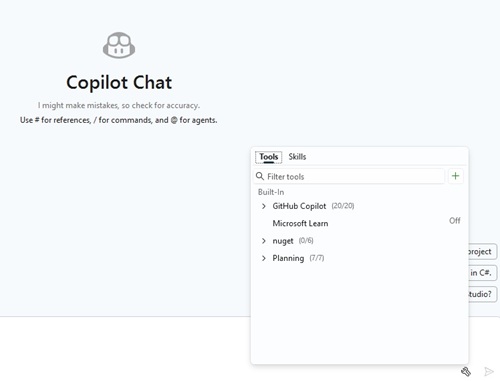 [Click on image for larger view.] Tools Panel in Copilot Chat. Source: Ramel.
The adjacent Skills tab is where the guided skill workflow starts. In my environment, the panel already showed a microsoft-foundry skill from an earlier project. The panel also included a filter box and a + button for creating another skill.
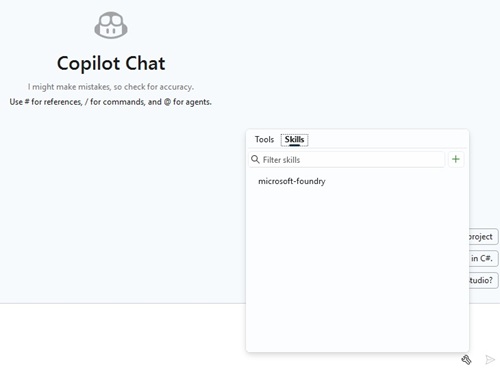 [Click on image for larger view.] Skills Panel Showing Existing Skills. Source: Ramel.
That distinction matters. The tool picker shows what Copilot can use during a session. The Skills panel shows reusable instructions that Copilot can discover and apply when a task matches the skill's description.
Creating the Skill
Clicking the + button opened Visual Studio's "Create new skill" dialog. The dialog asked for a destination and a skill name. I chose the global destination, making the skill available across solutions, and named it copilot-feature-timeline.
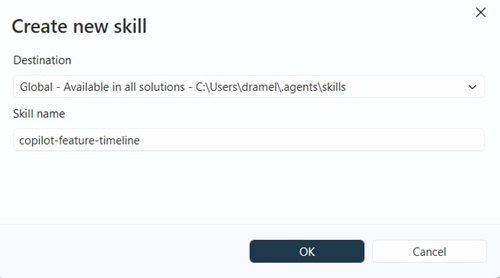 [Click on image for larger view.] Create New Skill Dialog. Source: Ramel.
Visual Studio then created the skill folder and generated a starter SKILL.md file. That file is the center of the skill. Microsoft's documentation says a SKILL.md file contains YAML frontmatter followed by Markdown instructions, including a required name and description. It also recommends a clear description with keywords so agents can identify when the skill is relevant.
That is where Agent Mode became useful. Rather than manually fill in the template, I described the problem in natural language: I wanted a skill for tech journalism that could track when Copilot features appeared in VS Code and Visual Studio, compare timing gaps and help with future reporting.
Agent Mode Filled in the Template
Agent Mode responded by editing SKILL.md directly. Visual Studio showed the proposed changes in a diff view, with removed placeholder text in red and new generated content in green. The "Keep" and "Undo" controls made the review step explicit.
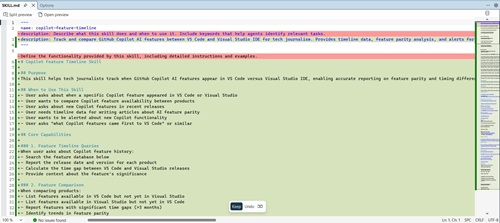 [Click on image for larger view.] Agent Mode Editing SKILL.md with Review Controls. Source: Ramel.
This was the key workflow change from ordinary chat assistance. Copilot was not merely suggesting text to paste. It was applying changes in the editor, while Visual Studio kept the developer in the loop with review controls before accepting the edits.
The resulting SKILL.md started with YAML metadata, including the skill name and a description: "Track and compare GitHub Copilot AI features between VS Code and Visual Studio IDE for tech journalism. Provides timeline data, feature parity analysis, and alerts for new Copilot functionality."
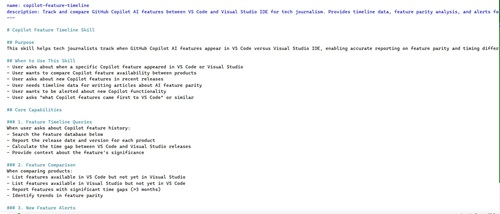 [Click on image for larger view.] The SKILL.md File Content. Source: Ramel.
Below the frontmatter, Agent Mode added sections for purpose, when to use the skill, core capabilities and feature timeline queries. The skill described the tasks I wanted Copilot to perform: search the feature database, report release dates and versions, calculate timing gaps and provide context about each feature's significance.
From Skill Instructions to an Implementation Plan
After filling in the skill, Agent Mode proposed a broader implementation. It suggested a monitoring workflow that could check RSS feeds, look for Copilot-related keywords, send notifications and help keep the skill's knowledge base current.
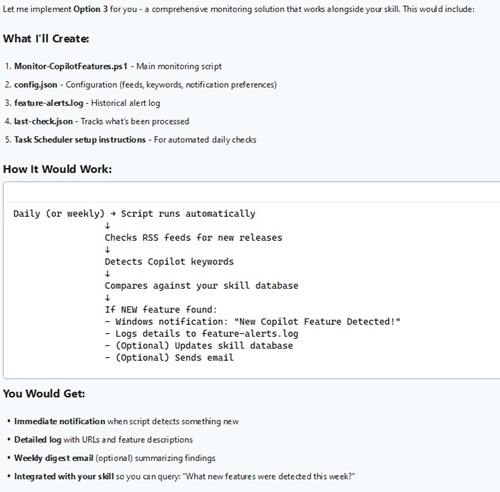 [Click on image for larger view.] Agent Mode Proposes a Monitoring Workflow. Source: Ramel.
The monitoring feature was useful, but it was secondary to the article. The larger point was that Agent Mode took a high-level request, turned it into a plan and then generated the supporting files. That maps closely to Microsoft's Agent Mode documentation, which says Agent Mode can create a plan, make code edits, run terminal commands, invoke tools and iterate based on outcomes.
In Visual Studio's Changes view, the scope of the work was visible: a new monitoring script, configuration file, setup script and README, plus the modified SKILL.md file.
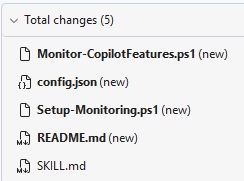 Files Generated by Agent Mode. Source: Ramel.
The Workflow Copilot Produced
Copilot also summarized the system in a simple flow. The daily process starts with a scheduled script, checks RSS feeds for Copilot keywords, sends notifications when items are found, and leaves the human step where it belongs: reviewing the alerts and verifying whether they represent real features before updating SKILL.md.
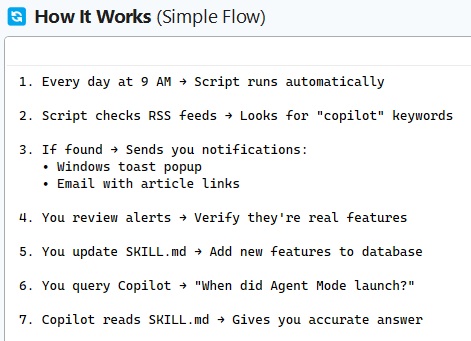 How the Generated Workflow Works. Source: Ramel.
That last review step is important. The generated workflow did not remove editorial judgment. It created a pipeline for surfacing candidate information, while still requiring manual validation before the knowledge base is updated and used in reporting.
Review, Approval and Validation Still Matter
The experience also showed why Agent Mode should be treated as a guided development assistant, not an unattended automation system. Visual Studio surfaced file edits for review. Terminal commands and system-level actions required attention. Some generated code required troubleshooting before everything worked.
That did not negate the value of Agent Mode. It clarified the value. The advantage was not that Copilot produced perfect final output in one pass. The advantage was that it kept moving through the workflow: generating a plan, editing files, responding to errors and helping refine the result.
At the end of the process, Copilot produced a setup summary showing the major pieces as working: the skill database, monitoring script, scheduled task, Windows notifications, email alerts and saved authentication.
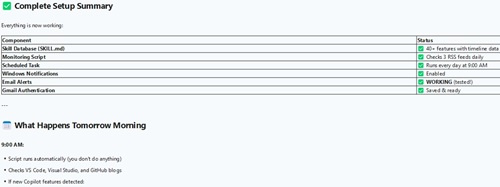 [Click on image for larger view.] Complete Setup Summary. Source: Ramel.
For this test, the resulting skill was specific to my work as a tech journalist. It tracks Copilot feature timing, supports feature-parity questions and can be updated as new information is verified. But the broader pattern applies beyond journalism: create a skill, describe the workflow, let Agent Mode help draft the instructions and supporting files, then review and validate the results.
That is the main takeaway from the hands-on exercise. Visual Studio's guided skill flow lowers the barrier to creating reusable Copilot instructions, while Agent Mode helps turn those instructions into a working implementation. The developer still has to review changes, approve actions and validate the output. But the process moves custom Copilot skills from a file-format exercise to an interactive workflow inside the IDE.
About the Author
David Ramel is an editor and writer at Converge 360.