News
VS Code Keeps Eye on Costs in v1.126 Update
With this month's switch to usage-based billing for GitHub Copilot shocking some developers with more credit usage and increased costs, Microsoft has lately been emphasizing ways to reduce costs in Visual Studio Code.
Last week, it was a "spend meter," with the dev team explaining: "To make sure you stay ahead of overage charges, the Copilot status dashboard now shows the percentage of your additional Copilot budget that you've consumed, so you can adjust your usage before you hit your configured limit."
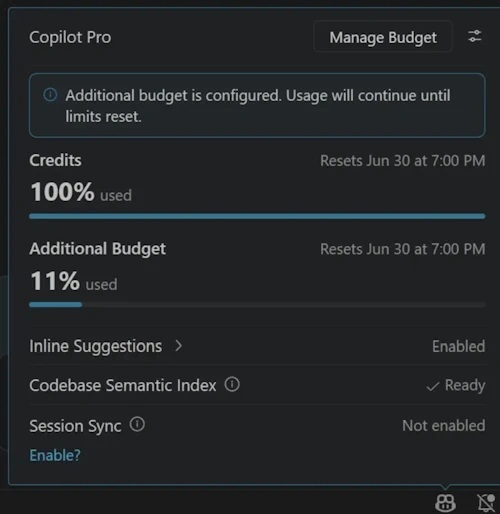 Manage Budget (source: Microsoft).
This week the trend continues with session-level cost information.
"You can now see the cost for an entire chat session, not just for individual turns," Microsoft said of version 1.126, released June 24. "This gives you better transparency into which sessions consume the most credits, making it easier to spot expensive conversations and manage your usage over time."
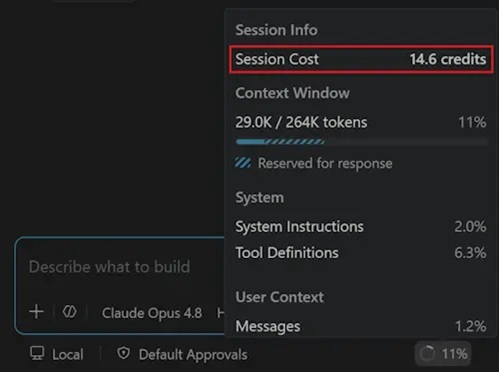 Session Cost (source: Microsoft).
Those are but two steps that Microsoft has taken to reduce the sticker shock.Earlier we reported that VS Code 1.118 arrived two days after GitHub's usage-based billing announcement with token-efficiency work in agent sessions. That earlier coverage cited VS Code release notes saying, "To help you get the most value out of your plan, we have been working on several initiatives to improve token efficiency without hindering the quality of the agent."
Yet another move early on tweaked the model picker to now display cost information to developers to help them make informed model choices. "Different models have different costs per token type, so choosing the right model for your task can help extend your usage," the company said.
The team also introduced a unified model customization picker, combining context size and reasoning, or thinking effort, controls into one place. Microsoft said the change is intended "to simplify language model configuration" by letting developers adjust both settings together instead of using two separate dropdowns.
The model hover was also simplified. It now shows a one-word description of the model's capabilities and includes links that take developers directly to the relevant configuration settings.
Agents Window Gets Multiple Chats
The release also updates the preview Agents window, which Microsoft described as "a dedicated companion window optimized for exploring, iterating on, and reviewing agent sessions across projects and machines."
In VS Code 1.126, a Copilot session started from an agent host can contain multiple chats at once. Those chats share the same session and working context while keeping separate conversations. Microsoft said a developer could keep a primary chat implementing a feature while opening another chat in the same session to review changes, draft tests or write documentation.
"Both run at once, and each chat keeps its own conversation," Microsoft said. "You can switch between tabs and pick up right where you left off."
Chats are persisted and restored across a window reload, and that developers can rename a chat directly in its tab. A chat's title is independent of the overall session title, so renaming the session does not overwrite a renamed chat.
Also in the Agents window, comments left on generated code are now stored on the agent host, allowing the agent to interact with that feedback through server-side tools such as listComments and resolveComments. Microsoft said this works even when the client disconnects because the comments live on the server rather than in the local session.
The agent can also create comments through the addComment tool. Microsoft said that when a developer runs a review skill such as /code-review, the agent reviews the code and adds inline comments that can be accepted or deleted before they are submitted to an agent to address.
Safer Browsing of Unfamiliar Code
Outside of Copilot and agentic coding, VS Code 1.126 changes the Workspace Trust experience. New folders now open in Restricted Mode and show the trust banner, instead of immediately interrupting the developer with a dialog asking whether to trust the folder.
Microsoft said the change lets developers browse code safely first and trust the folder when they are ready. The change also updates the default value of the security.workspace.trust.startupPrompt setting from once to never. Developers who want the previous prompt behavior can set the value back to once.
The Workspace Trust editor also no longer shows the Trust Parent button next to the Trust button. Microsoft said the button looked like the regular Trust button but trusted the entire parent folder, making it easy to trust more folders than intended by mistake. Developers can still trust a parent folder by adding its path to the Trusted Folders & Workspaces list.
Other Updates
The 1.126 release also adds a new VS Code blog landing page and blog archive, along with a restructured documentation table of contents. Microsoft said agentic documentation is now grouped under a single "Agents" section, while editor and configuration content is grouped under "Editor."
About the Author
David Ramel is an editor and writer at Converge 360.