Tips
Mads Kristensen's Advanced Visual Studio Tips & Tricks
Microsoft's Mads Kristensen showed off some advanced Visual Studio tips and tricks ranging from layouts to dev tunnels to solution colors and more.
Kristensen, a principal program manager on the .NET and Visual Studio teams for more than a decade, is known for creating extensions to add all manner of functionality to the IDE. He shared his latest insights during the Build 2023 developer conference last week in a session titled Advanced developer tips and tricks in Visual Studio, now available for on-demand viewing.
All his featured tips and tricks aren't brand-new bits in the latest previews, as Kristensen chose some with cool functionality that simply isn't being used by developers, according to telemetry.
Here's a summary of five tips and tricks.
Save Window Layout
This feature helps developers vexed by messy layouts caused, for example, by creating a layout to fit a widescreen monitor hooked up to a laptop, but which looks terribly crowded when the machine is plugged in to a smaller display. To address things like that, when a developer has dragged and dropped to produce a windows layout for a specific scenario, it can be saved with the "Save Window Layout" command, which brings up a list of any saved layouts.
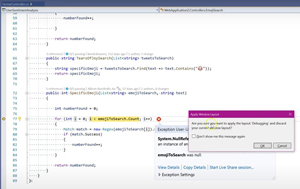 [Click on image for larger view.] Apply Debugging Layout? (source: Microsoft).
"You can give them any name you want and very easily you can change between them," Kristensen said. "The reason I want to show you this is because I know we got data on this, but you don't use it." More information can be found in Customize window layouts and personalize tabs documentation and a Saved Window Layouts in Visual Studio video.
Endpoints Explorer
Kristensen demonstrated how Swagger provides a list of inputs to a web project, "but Visual Studio has never really had that ability for me to really quickly get a glance of what are the different end points that I have in my app."
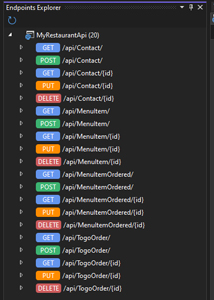 [Click on image for larger view.] Endpoints Explorer (source: Microsoft).
For that, the Endpoints Explorer can list routes -- or endpoints -- so a developer can see what file they belong to and explore its methods and even make HTTP requests. That involves creating an .http file, which is new to Visual Studio but not other IDEs or editors like Visual Studio Code. "Because this is an HTTP file, it's just a text file on disk," Kristensen said. "I can check this into my source control. My team members can see how to use my API or our API. But also I can use it as documentation."
Dev Tunnels
Microsoft says: "The dev tunnels feature of Visual Studio 2022 enables ad-hoc connections between machines that can't directly connect to each other. A URL is created that enables any device with an internet connection to connect to an ASP.NET Core project while it runs on localhost."
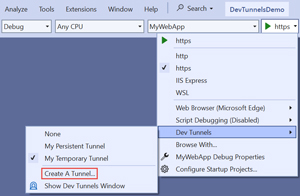 [Click on image for larger view.] Dev Tunnels (source: Microsoft).
The scenario Kristensen used to demo dev tunnels is testing.
"What if I want to test something or I have a mobile app talking to my API and it might be a colleague of mine that builds that mobile app and that colleague wants to test something that I'm doing on my laptop here on the API, how do we take a mobile app from one person's desktop and connect it over to my API on my localhost?"
That hasn't typically been easy, he said, though there are for-pay products to help. So it's dev tunnels to the free rescue for use cases like testing.
"Maybe I want to test whatever website I'm working on, on my phone to see if it renders correctly on a mobile device," Kristensen said. "I can now do that super easily. Not only is it easy, it's free."
You can read more about this in the Visual Studio Magazine article, "Visual Studio 'Port Forwarding' Now 'Dev Tunnels,' So What's a Dev Tunnel?"
Instant Documentation
Kristensen explained this in the same Web API scenario, specifically in cases such a a new developer encountering an API not fully understood in a new NuGet package, or a dev joining a team and not being familiar with how members write their code.
He showed how by just hovering over an API method, a dev can select "GitHub Examples and Documentation" to open up a new window with a long list of examples of other apps using that API in many different ways. "There's really a lot here," he said. "I can learn a lot by doing this. What did I have to do before? I had to go read documentation, well if there was documentation. But now we'll get to see how people are actually using it right here. It's so clever that it even knows about the different overloads for this particular method and it can give me all these examples.
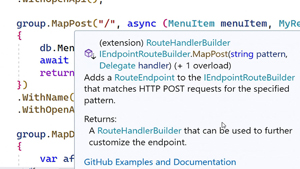 [Click on image for larger view.] GitHub Examples and Documentation (source: Microsoft).
"What's really helpful to me here, what I really think is really cool about this direction is, first of all, in order to provide relevant examples, the AI engine in Visual Studio understand the context that my code is in. So when I hover over something, it understands what that code is there for and can therefore give me relevant examples."
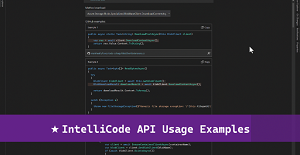 [Click on image for larger, animated GIF view.] API Code Examples in Animated Action (source: Microsoft).
You can read more about this in the Visual Studio Magazine article, "Visual Studio IntelliCode Preview Offers Instant API Code Examples."
Add New Item
This established feature sports the relatively new functionality of enabling devs to invoke it with a Ctrl+Shift+A command that opens up the add-new-item UI in a compact view.
"What this 'Control-Shift A' does, it always gets you back to the view you used before," Kristensen said. "Did you use the compact view or the full view? But if you're like me, I always want the compact view first regardless of whether or not I used the full view earlier." For that, the Shift+F2 command always opens up the compact view.
He also showed easy it was to use the compact view to create files and folders and more. Also, the tool is smart enough to figure out the type of a new file, such as a class.
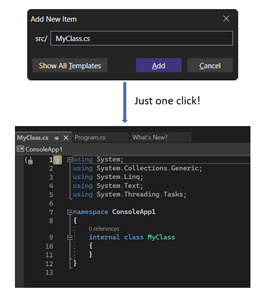 [Click on image for larger view.] Add New Item (source: Microsoft).
"Because it maps to the templates that was in that big view, the old 'Add New Item' dialog unit, we have all those templates, it is clever enough to map file extensions to what is probably the most likely template that you want, in this case a class," he said.
"This thing is pretty clever and that's cool."
Much More Cool
Kristensen went on to demo five more cool tips and tricks, including: comparing files, showing tabs in multiple rows; a solution loader that loads the IDE into a desired state; solution colors; and code cleanup and code cleanup profiles. He also had guests on hand to explain new Git tooling functionality and GitHub integration, along with the Visual Studio UI refresh. The on-demand video from last week's Build conference is about 44 minutes long.
About the Author
David Ramel is an editor and writer at Converge 360.