In-Depth
Fixing a Blazor App with VS Code's New Agent Browser Sharing
Visual Studio Code 1.119 improves the way AI agents work with the editor's integrated browser, so I went hands-on to see how it works.
I tried a practical before-and-after test with an existing Blazor app that had a known runtime bug.
VS Code has been pulling more web-development work into the editor through its integrated browser and agentic browser tools. Instead of switching between the editor, terminal, browser and DevTools, developers can run an app, inspect it, share the live page with an agent and verify fixes inside VS Code. Version 1.119 improves that loop by making browser sharing more visible and chat-driven.
The integrated browser debuted in February and the latest related functionality lets users explicitly share live browser tabs with agents so they can validate changes, edit code, reload pages and refine designs in real time while keeping browser access permissioned.
Agents can't access the editor's integrated browser by default, so users must explicitly share browser pages with the agent, after first opening the integrated browser via the command palette.
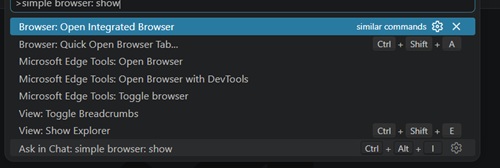 [Click on image for larger view.] Open Integrated Browser from Command Palette (source: Ramel).
Last week's update added new ways to share browsers with an agent. Under the "Attach browser tabs as context" heading, Microsoft says: "Browser tabs can now be explicitly attached to the chat via typical entry points such as suggested context, context picker, and drag-and-drop actions."
Previously, users could share a browser page with an agent by opening the page in the integrated browser, selecting the Share with Agent button in the browser toolbar, and then selecting it again to revoke access. The 1.119 update adds more chat-centered ways to attach the browser tab as context and also lets agents request access to open but unshared browser tabs.
 The Old Way: Share with Agent from the Browser Toolbar (source: Ramel).
Now, once the integrated browser is open, the browser surface exposes an add browser to context control near the top of the Copilot Chat area.
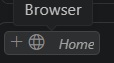 New Icons (source: Ramel).
Clicking the plus (+) button offers to "Add browser to context," while the globe icon and page name point to whatever is open in the integrated browser. Users can also drag and drop the browser tab into the chat input to attach it as context.
They also make it easy to remove the browser from context.
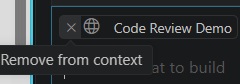 Remove from Context (source: Ramel).
However the browser is added, VS Code asks for confirmation before sharing it with the agent.
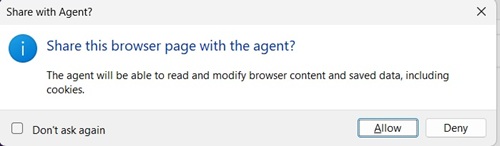 Permission to Share (source: Ramel).
Testing It on a Blazor App
All the sharing methods worked in the same Blazor project previously used in a Visual Studio custom-agent proof of concept. That earlier test used a repo-local code-review agent against a deliberately flawed page named CodeReviewDemo.razor. For this VS Code 1.119 hands-on proof of concept, the goal was narrower: use Copilot Chat in VS Code to help fix a visible Blazor failure, then use the integrated browser sharing flow to verify the result in the running app.
Bringing a Visual Studio 2026 project into VS Code can present some hiccups, including required resources, local debugging issues or exception prompts.
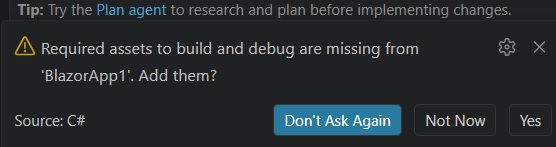 Required Resources (source: Ramel).
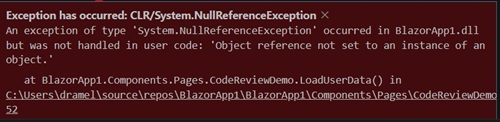 Exception Occurred (source: Ramel).
GitHub Copilot Chat helped me get everything straightened out with a flurry of terminal commands I couldn't keep up with, but the web app was soon displayed and ready to be fixed.
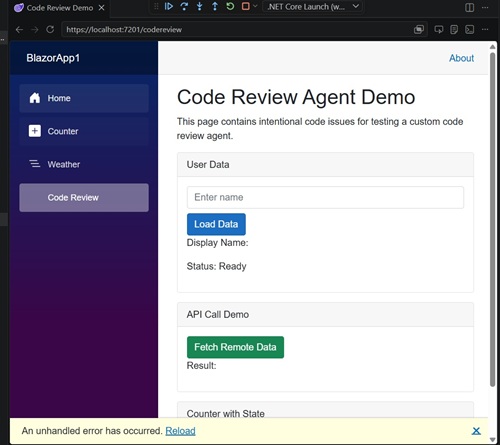 [Click on image for larger view.] Code Review Error (source: Ramel).
The test page exposed a simple failure path. In the /codereview route, clicking Load Data with an empty name triggered a null-reference crash path in LoadUserData(). That made it a useful demo target: reproduce the failure, ask Copilot Chat to inspect and fix the component, rebuild the app, and verify the fixed behavior in the integrated browser.
Fixing the Component with Copilot Chat
Copilot Chat was then asked to guide the repair.
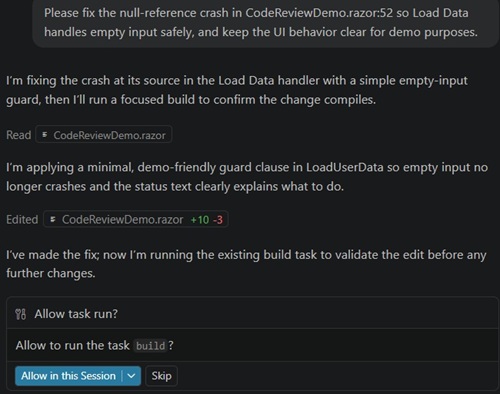 [Click on image for larger view.] Copilot Fix Instructions (source: Ramel).
In this run, it inspected the failing component and identified the crash source in CodeReviewDemo.razor. The applied fix was intentionally small: add guard logic in LoadUserData() so empty or whitespace input is handled before the code attempts to use missing user data.
After the change, clicking Load Data with no name no longer crashed the component. Instead, the page showed a safe status message. The valid-input path still worked: entering a name produced the expected display output and status behavior.
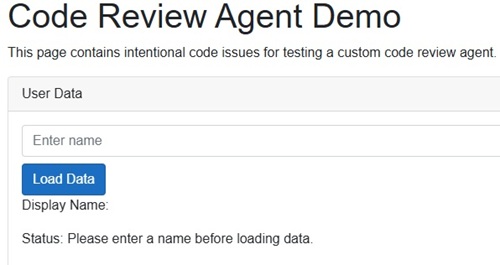 Fixed (source: Ramel).
Copilot duly reported its work.
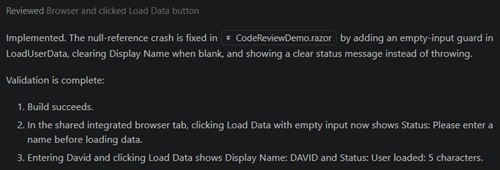 [Click on image for larger view.] Copilot Fix Report (source: Ramel).
Testing the New Sharing Paths
The browser-sharing portion of the test is where VS Code 1.119 enters the story. Microsoft says browser tabs can now be attached to chat through suggested context, the context picker and drag-and-drop actions. In my run, those paths all led to the same result: the running Blazor app's integrated browser tab became available to Copilot Chat as context.
The most direct path was the plus control, which offered to "Add browser to context." The context-picker flow provided the manual add-context route, while drag-and-drop let the browser tab be added to the chat input without using picker controls. Once attached, the browser tab entered a sharing state where the agent could read and interact with the page.
Letting the Agent Ask for Access
The more distinct 1.119 behavior is the agent-initiated request flow. Microsoft says agents now have information about how many browser tabs are open but not shared. When an agent needs to interact with a page, it can request sharing, and the user can approve or deny the prompt.
For the Blazor run, that flow was tested by starting a verification step without pre-sharing the browser tab. The prompt asked the agent to verify the running app in the integrated browser. Instead of assuming access, the agent requested access to the existing unshared browser tab. After approval, it continued with page interaction and verification.
What the Test Showed
The hands-on result was a complete code-to-browser loop: reproduce the Blazor failure, fix the component with Copilot Chat, share the integrated browser tab, and verify the corrected behavior in the running app. The new 1.119 functionality did not make the agent better at Blazor specifically; it made the browser-verification step more visible, permissioned and easier to drive from Chat.
That is the practical improvement for web developers. Instead of treating the browser as a separate place where the developer manually checks the result and reports back to Chat, VS Code 1.119 makes the running page part of the agent workflow while still requiring explicit user approval before the agent can access it.
About the Author
David Ramel is an editor and writer at Converge 360.