Visual Studio Toolbox
Visual Studio 2019 Productivity Cheat Sheet
Sure, there are plenty of cheat sheets showing keystroke combinations that can increase productivity in Visual Studio, but many new ones have been introduced with the April 2 launch of VS 2019, including those in subsequent previews.
Several new time-saving keystroke combinations were recently detailed by Kendra Havens, program manager for .NET and Visual Studio, in a Channel 9 video presentation.
"Sometimes I always want to bring these up and touch back on things that are just really very useful, that we almost never talk about in all of the newer talks," she told host Robert Green in the May 30 video (here on the Channel 9 site and here on YouTube).
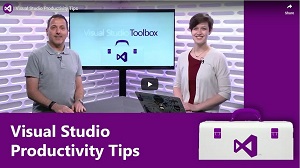 Robert Green and Kendra Havens (source: Microsoft).
While the 29-minute video provides more context for the productivity tips, here's a handy summary of some of Havens' favorite features, including recent ones introduced up through Visual Studio 2019 update 16.1 Preview 2:
- Navigate backward: (Ctrl + -)
- Sync with your active document: (Ctrl + [ + S)
- Run code cleanup on solution/projects from Solution Explorer: (Right-click)
- Open special context menu different from "right click" that has specifically more editor commands on it: (Alt + `) [the presenters weren't sure about the name for that latter character, available on the same key as the tilde; they referred to it as "tick"]
- Right-click on a project node in the Solution Explorer and "open file" in File Explorer
- Access Clipboard history: (Ctrl + Shift + V)
- Go to recent files: (Ctrl + T + R) [Ctrl + T to open search box, then type R]
- Go to last edit location: (Ctrl + Shift + Backspace) [different from navigate backward, which just goes to last cursor location -- this goes to last place where code was edited]
- Multi-caret editing: (Ctrl + Alt + Click) [allows you to go to multiple locations and add text, for example]
- Toggle block comments: (Ctrl + Shift + /)
- Regex Completion: (Ctrl + space)
- Categorize references by Read/Write in Find All References window: (Shift + F12)
- Open a csproj by double-clicking on a project in solution explorer (.NET Core only)
- Allow Extract Interface to remain in same file: (Ctrl R, Ctrl I)
Of course, all kinds of functionality is available, depending on where you are, from the (Ctrl + .) combination. New features added to this keystroke combination in VS 2019 16.1 Preview 2 and VS 2019 16.1 Preview 1 include:
- Move Type to Namespace: (Ctrl + .)
- Initialize a private field from constructor and vice versa: (Ctrl + .)
- Make readonly struct fields writable: (Ctrl + .)
- Split/Merge nested if statements: (Ctrl + .)
- Wrap binary expressions: (Ctrl + .)
- Code fix to unseal a class: (Ctrl + .)
One tip shared by Havens is the ability to remap common commands to your own kestroke combination to remember them easier. For example, Havens demonstrated how to remap file open to her preferred (Ctrl + O, Ctrl + O) combination. That's done via menu commands: Tools | Options | Keyboard.
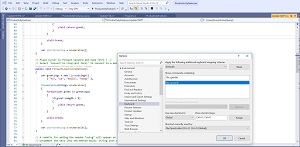 [Click on image for larger view.] Remapping a Command .
One viewer especially like that tip, commenting: "Open Folder in File Explorer has a new shortcut now (Ctrl + O, Ctrl + E) for me."
More details on all of the above are available in the Visual Studio recent productivity features GitHub repo created by Havens, providing available features ranging from the recent VS 2019 16.1 Preview 2 back to VS 2017 15.8. You can clone it and open it up to follow along with comments showing the various tips.
Havens also did another Channel 9 video presentation, Write beautiful code, faster, for the VS 2019 launch event.
Other Visual Studio productivity resources include:
And, by the way, a viewer provided one more bit of information about that "tick" character: "The tick ´ is called Acute accent (or 'accent aigu' in French) and backtick ` is Grave accent (or 'accent grave' in French). And while on the topic, the hat ^ is called Circumflex (or 'accent circonflexe' in French)." Perhaps not very useful, but good to know when you're geeking out your friends.
What are your favorite Visual Studio time-savers? Please share by commenting below.
About the Author
David Ramel is an editor and writer at Converge 360.