In-Depth
Hands On with the New Agents Window in VS Code 1.120
It was just short of a year ago that Microsoft officially announced that it was on a mission to turn Visual Studio Code into an open source AI editor, and today it took a big step in that direction.
VS Code 1.120 is now available, and its headline feature is the Agents window, a dedicated VS Code surface for managing agent-driven development across projects. The feature, now in Stable preview, moves agent work into a separate window designed around sessions, prompts, customizations and review workflows.
Microsoft's VS Code 1.120 announcement says the release "brings the Agents window to Stable, improves BYOK model visibility and control, and adds Markdown quality-of-life improvements and agent safety features." Microsoft describes the Agents window as "a companion to the editor you already know: purpose-built for agent-driven development, with a dedicated space to explore, iterate on, and review tasks across multiple projects, and seamlessly switch between them."
In a hands-on look, the first visible change is a new Agents button in the VS Code title bar. In this screenshot, the compact button appears near the upper-right window controls.
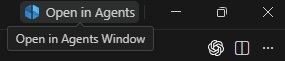 The 'Open in Agents' Button in the VS Code Title Bar (source: Ramel).
My first prompt in the Agents window asked the agent inside the new window (Claude Sonnet 4.6) to describe the Agents window. Its answer called the Agent Sessions sidebar "a unified control center for managing all AI coding agents directly inside VS Code" and said the feature "transforms VS Code from a single-chat assistant into a multi-agent orchestration platform where you can delegate, monitor, and coordinate a team of AI collaborators." While those lines came from the user-provided agent response, not from Microsoft documentation, they neatly summarize the hands-on experience: The new window is not just another chat pane. It is a workspace organized around agent sessions and the configuration that shapes them.
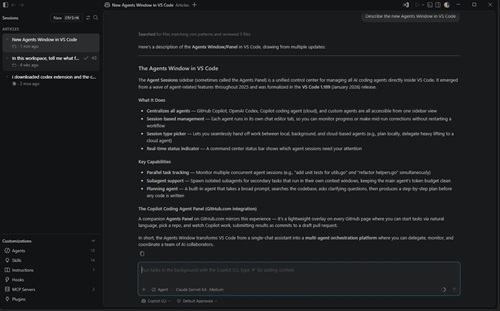 [Click on image for larger view.] The Agent Window Describes Itself (source: Ramel).
Opening the Agents Window
Microsoft's Use the Agents window (Preview) documentation says the Agents window opens as a dedicated VS Code window alongside the main editor window. In addition to the button, it can also be opened from the Command Palette with Chat: Open Agents Window, from the VS Code welcome page or from the command line with code --agents.
The documentation says the Agents window requires GitHub authentication to access a user's Copilot subscription and sessions. If the user is already signed in to GitHub in VS Code, that sign-in also applies when the Agents window opens. Users who want to remain in the editor window can hide the title-bar button by right-clicking it and selecting Hide 'Open in Agents', while still opening the window later from the Command Palette or command line.
Microsoft also draws a clear line between the regular editor window and the Agents window. The two surfaces share sessions and VS Code configuration such as settings and keybindings. The editor window remains the place for full-featured editing, debugging, notebooks, extensions and remote development. The Agents window is for prompt-driven work, orchestrating work across multiple projects and keeping AI customizations such as plugins, skills and MCP front and center. I found it extremely useful to move the new Agents window around, such as to a different screen in my multiple-monitor setup, while staying in the VS Code editor.
Sessions Become the Center of the Experience
As the screenshot above shows, the left sidebar contains a Sessions area with a New button, and the central area shows the agent's response after searching matching files and reviewing several local article files. The chat prompt box remains at the bottom, with Copilot CLI selected in the session controls.
Microsoft's documentation says the Agents window picks up existing Copilot CLI, Copilot Cloud and Claude agent sessions across workspaces. We recently reported on how Claude is becoming more of a first-class agentic AI actor in VS Code (see "Special Embrace? VS Code Adapts to Claude Code's Ecosystem"). The Claude option appearing with Copilot CLI in the Agent Customizations panel -- and elsewhere as explained below -- explicitly proves that premise.
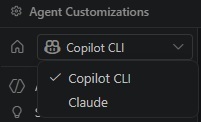 Claude Joins Copilot CLI (source: Ramel).
Users can switch between sessions across different workspaces without opening each workspace in a separate VS Code window. The main areas are the sessions list, the customizations panel, the chat area and the Changes panel, where users review file changes and other artifacts generated during an agent session.
Starting a session begins from the New button at the top of the sidebar or the Ctrl+N shortcut on Windows and Linux. Users select a local folder or GitHub repository, choose an agent for the session and, for Copilot CLI sessions, choose between folder isolation and worktree isolation. Microsoft says folder workspaces can use Copilot CLI or Claude agent, while repository sessions use the Copilot Cloud agent. The documentation says that after a prompt is entered, "The agent breaks down your task into steps, writes code, runs commands, and self-corrects when something goes wrong."
The user-provided agent answer described this as "session-based management" and "parallel task tracking." Those phrases are not from the Microsoft docs, but they match the layout shown in the screenshot: work is presented as a set of sessions rather than a single, persistent chat thread attached to one workspace.
Agent Customizations Get Their Own Dashboard
Another screenshot shows the Agent Customizations landing page, mentioned above, in full. The page includes a prompt box for describing preferences and conventions to draft agents, skills and instructions. Below that are six cards: Agents, Skills, Instructions, Hooks, MCP Servers and Plugins.
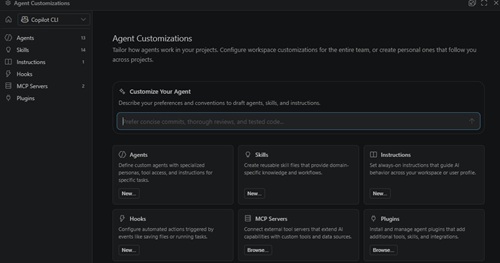 [Click on image for larger view.] The Agent Customizations Panel (source: Ramel).
Microsoft's documentation says the Customizations panel provides direct access to AI customization options. Agents define custom agent personas with specific tools and instructions. Skills are portable instruction folders that agents load when relevant. Instructions set guidelines that shape how AI generates code. Hooks run shell commands at lifecycle points during agent sessions. MCP Servers connect AI to external tools and services through the MCP standard. Plugins install prepackaged bundles of customizations.
The documentation says the Agent Customizations panel can be used to view and edit existing customizations for a project or across all projects, add new customizations with the built-in editor or by generating them from a prompt, install plugins or MCP servers from the marketplace, and enable or disable customizations without removing them. A dropdown in the top-left chooses which agent the customizations apply to.
This screenshot of the Agents panel shows built-in Ask and Explore agents in addition to a bunch I have toyed with.
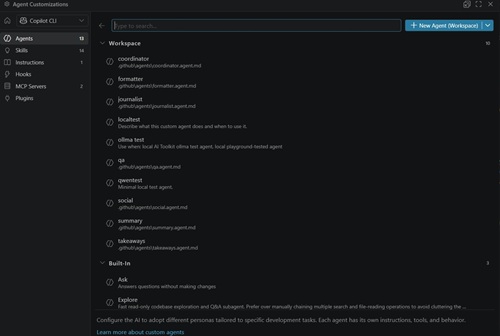 [Click on image for larger view.] Built-In and User Agents in Agents Panel (source: Ramel).
Skills, Instructions, MCP Servers and More
The Skills screenshot shows the page grouped into Workspace, User and Built-In options. Regarding the latter, while there were only two built-in agents, I counted 12 built-in skills. In addition to the nine shown here, there were troubleshoot, update-pr and update-skills options.
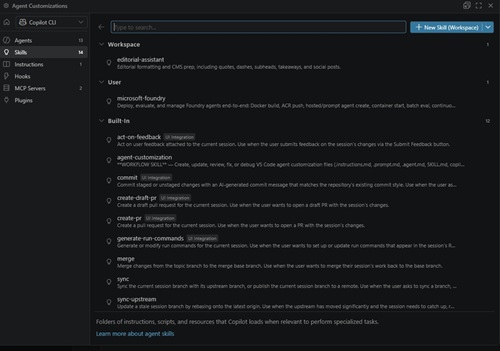 [Click on image for larger view.] Built-In and User Skills in Skills Panel (source: Ramel).
For a look at what's in these skills, here's the update-pr skill:
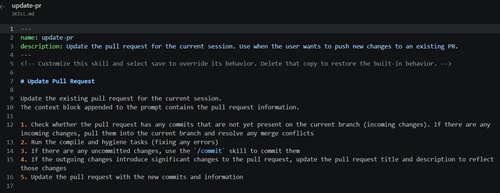 [Click on image for larger view.] The 'update-pr' Skill (source: Ramel).
There were no built-in Hooks or Plugins, but there was a built-in GitHub MCP Server, which is not surprising given the tight integration between GitHub and VS Code. Clicking on it didn't show anything -- it just appeared as a choice you can use.
Taken together, those screenshots show why Microsoft emphasizes the customizations panel in the documentation. The Agents window is not only a place to run prompts. It is also a management surface for the instructions, skills, MCP connections and agent definitions that shape how those prompts are handled.
Reviewing Agent Output
The documentation says the Changes panel is split into a Files tab and a Changes tab. The Files tab provides a file explorer view of the workspace. The Changes tab lists files that the agent changed, added or deleted. Selecting a changed file opens a diff view showing the agent's edits compared with the current state of the workspace. When I first clicked on the Changes tab it displayed an Initialize Repository button,
 [Click on image for larger view.] The Recalcitrant Initialize Repository Button (source: Ramel).
but then nothing happened for several minutes after clicking it while I asked my AI assistant to find out something about that button, which it couldn't. And I could find nothing about an "Initialize Repository" button in Microsoft's documentation for the Agents window or on the web. While I was still trying to figure it out, this appeared:
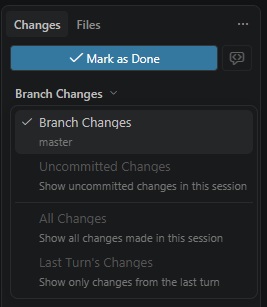 [Click on image for larger view.] The Recalcitrant Initialize Repository Button Awakes (source: Ramel).
So I have no idea what happened there. My AI assistant's best read was: "The workspace likely was not fully recognized as a Git-backed session when you first opened the panel, so it showed 'Initialize Repository.' After several minutes, VS Code/Copilot CLI either initialized the repository, finished scanning the workspace, or finished hydrating the session's branch/change metadata. Once that happened, the Changes tab switched into its normal Git/session-aware state." Note that my workspace was indeed just an Articles folder where I write all my articles, so my underpowered PC just took a long time to get set up as my AI indicated.
Anyway, users working on a real repo can open the diff view beside the Chat view or in a modal window. They can also click inside an edit and select Add Feedback to enter feedback directly in the file and signal that the agent should adjust its work. After review, the Changes panel provides options to commit changes, merge worktree-isolated changes, check out a Copilot Cloud branch locally or discard edits.
Microsoft says the Agents window also supports validating changes locally by running tasks and commands in the context of the current session. Users can add tasks, run builds or tests, start a development server, open localhost links in the integrated browser and open a terminal with its current working directory set to the session's folder or worktree.
What Else Is in VS Code 1.120
Although the Agents window is the lead feature, VS Code 1.120 also includes several AI, Markdown and extension updates. For Bring Your Own Key models, the Chat view context window control now shows accurate token usage and percent-full information. The model picker supports thinking-effort configuration for BYOK reasoning models served through OpenAI-compatible endpoints, and models are grouped by provider.
Chat adds terminal tool output compression in preview through chat.tools.compressOutput.enabled. Microsoft says VS Code can post-process long terminal outputs from commands such as git diff, ls -l and npm install before sending them to the model. Another experimental setting, chat.tools.riskAssessment.enabled, adds an AI-generated risk badge and explanation to terminal command confirmations, using Safe, Caution and Review carefully levels.
Markdown receives a preview feature for rendered diffs, allowing users to review Markdown changes as rendered content instead of raw source. Other Markdown changes include default preview behavior changes, HTML id support for Markdown path completions and validation, and basic smart selection for Markdown tables. For extension authors, VS Code 1.120 adds proposed APIs for custom editor diffs, separate custom editor priorities for diffing and merging, and document diffs through workspace.getTextDiff
.
About the Author
David Ramel is an editor and writer at Converge 360.