News
VS Code 1.123 Adds Agent Session Sync, 1M Context Windows
Visual Studio Code 1.123 is centered on agent workflows and the integrated browser, according to Microsoft's release notes for the June 2026 update.
The Visual Studio Code 1.123 release notes list five headline items: larger context windows, session sync, an Agents window, a research agent and integrated browser updates. Microsoft states in the release notes, "This release improves how you work with agents and the integrated browser."
The update covers several areas of the editor. In the Agents section, Microsoft added automatic chat session syncing, chronicle commands, sandbox retry behavior for network-dependent commands, multiple open sessions in the Agents window and a preview research agent. The release also adds 1 million-token context window support for compatible Anthropic and OpenAI models, favorite pages in the integrated browser, more screenshot capture options for chat context and a two-hour delay before some newly published extension versions are automatically installed.
Session Sync and Chronicle
VS Code 1.123 adds automatic syncing of chat sessions to a user's GitHub account, giving users what Microsoft describes as a personal, searchable history across machines and workspaces. The release notes say each synced session captures the conversation, files touched, repository context such as repository, branch and timestamps, and referenced pull requests, issues or commits.
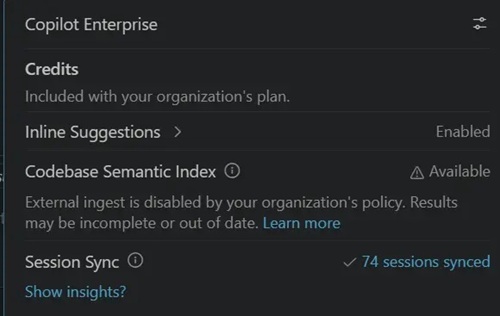 [Click on image for larger view.] Session Sync Status (source: Microsoft).
Microsoft also added chronicle commands, invoked with /chronicle, for working with that session history in chat. The documented uses include asking natural-language questions about past sessions, generating standup reports, getting personalized productivity tips and searching coding history by topic, file or pull request.
Users can enable session sync by turning on chat.sessionSync.enabled and can view sync status in the Copilot status dashboard in the VS Code Status Bar. A related session sync documentation page says VS Code syncs chat sessions to GitHub by default, including local agent sessions, and says synced sessions are private unless explicitly shared. Users can keep session data local only by setting chat.sessionSync.enabled to false, and can exclude repositories from cloud sync with chat.sessionSync.excludeRepositories.
For Copilot Business and Copilot Enterprise users, the session sync documentation lists two controls: a GitHub.com enterprise policy named "Store local sessions in the Cloud" and a VS Code group policy named CopilotSessionSync. The documentation says disabling the VS Code group policy forces chat.sessionSync.enabled to false and keeps sessions local only.
Agent Window Updates
The Agents window is described by Microsoft as a companion window for exploring, iterating on and reviewing agent sessions across projects and machines. In VS Code 1.123, Microsoft focused on multiple sessions side by side.
Users can open more than one session at the same time in the Agents window by selecting Open to the Side from a session's context menu, dragging and dropping a session into the session view area, or holding Alt while selecting a session in the session list. Even when multiple sessions are visible, only one session is active at a time. Microsoft says the Terminal, Files and Changes views operate on the active session, and switching the active session updates those views.
The release also adds controls for how sessions remain visible. A session view can be pinned from the top-right pin action so it will not be replaced when another session is selected. If all session views are pinned, selecting another session opens it to the side. A maximize action can expand a session view across all open session views.
Research Agent Preview
VS Code 1.123 introduces a research agent in preview, but Microsoft limits its availability. The research agent is "currently in preview and available only in Copilot CLI (local) sessions in Insiders."
The research agent is intended for tasks such as understanding unfamiliar code, comparing approaches or learning how a library or API works. Microsoft says it gathers and synthesizes information from a user's codebase, relevant GitHub repositories and the web, then produces a cited Markdown report. The release notes also state that the research agent is optimized for depth rather than speed and has read-only access, so it reports findings instead of changing code.
To run it, users type /research followed by a topic in the chat input of a Copilot CLI local session. The linked Microsoft page for Copilot CLI sessions in Visual Studio Code is the supporting documentation for that workflow.
Language Models and Browser Tools
The release adds support for 1 million-token context windows for compatible Anthropic and OpenAI models. Microsoft says the larger context window is available when using supported models, including Claude Opus 4.7 and GPT-5.5. The release notes also warn that larger context windows may consume more tokens per interaction, increasing AI credits usage under usage-based billing.
In the integrated browser, Microsoft remodeled the address bar so users can enter URLs, favorite pages and access favorites and open tabs. Users add a page to favorites by selecting the star icon in the browser URL bar. Selecting the URL bar displays a list of favorite pages and open tabs.
The integrated browser also gets more screenshot options for chat context. Microsoft says the previous release introduced Add Screenshot to Chat for attaching the current browser viewport to chat. VS Code 1.123 adds Add Area Screenshot to Chat, which captures a selected rectangular area, and Add Full Page Screenshot to Chat, which captures the full web page beyond the visible viewport. The full-page option is marked experimental and requires workbench.browser.experimentalUserTools.enabled.
Extension Update Delay
VS Code 1.123 also changes how automatic extension updates are applied. Microsoft says VS Code now applies a two-hour delay before automatically updating extensions to a newly published version when automatic updates are enabled.
The delay is intended to add protection against problematic or potentially compromised releases. Users can still update any extension immediately by using the Update button. While an update is waiting, the extension's details view explains why it has not updated and when the automatic update will happen.
The delay does not apply to extensions from trusted publishers, according to the release notes. Microsoft lists Microsoft, GitHub and OpenAI as examples of trusted publishers whose extensions continue to update immediately.
About the Author
David Ramel is an editor and writer at Converge 360.