News
Visual Studio May Update Adds Plan Agent, Diff Review Tools
Microsoft's May Visual Studio update centers on new Copilot-assisted planning and review features, along with a new MSVC Build Tools release for C++ developers.
The update, described in a May 26 blog post, adds a Plan agent, an Agent Skills management panel, context window usage indicators, multi-file diff review features and MSVC Build Tools v14.51. Microsoft said the features are intended to add reviewable steps between an idea and a completed change.
Plan Agent Adds a Read-Only Planning Step
The Plan agent is available from the agent picker in Copilot Chat and is designed to let developers work with Copilot on an implementation plan before code changes are made. The agent first explores and clarifies the task by using read-only tools to understand the codebase. It can ask questions when it needs more information and can draft a plan immediately for straightforward tasks.
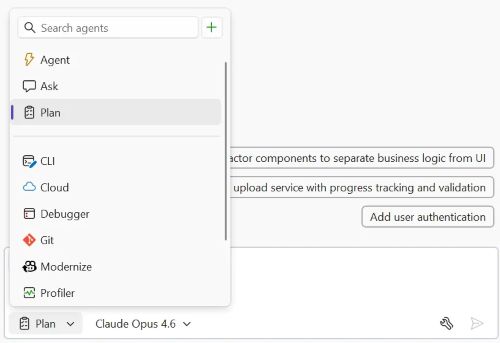 [Click on image for larger view.] Plan Agent (source: Microsoft).
Plans are saved as markdown files at .copilot/plans/plan-{title}.md. Microsoft described that file as the single source of truth for the plan, which can be edited directly in the editor, refined through chat or shared with a team for review. When the developer is ready, the plan can be handed off to Agent mode by selecting Implement plan.
Microsoft separately introduced the Plan agent in a May 21 Visual Studio Blog post, Plan Before You Build. The Plan agent starts by clarifying what the developer is trying to build and allows iteration on the plan before making changes. No code changes happen until the user chooses to implement the plan.
The May update positions the Plan agent as a tool for large features, unfamiliar codebases and team collaboration. Microsoft did not document licensing, availability by Visual Studio edition or model requirements in the May update post.
Skills and Context Management Get New Surfaces
The update adds a skills panel for Agent Skills discovered from a workspace and user profile. The panel can be opened from the tools icon at the bottom right of the chat window, according to Microsoft. From the panel, users can search skills by name or keyword and use a menu to edit a skill file in Visual Studio or open its location in File Explorer.
The update also adds context window usage visibility in Copilot Chat. Copilot tracks conversation history, attached files and other context, and that the context window has a limit. A ring icon at the top right of the Copilot Chat prompt box now shows context usage with a mini donut chart. The flyout can display a usage breakdown based on the current conversation and selected model.
The update post also references conversation summarization through the context window flyout and shows a Summarize conversation button. Microsoft documents that the context usage display can show reduced usage after running /compact, based on the example shown in the post. Specific model-dependent context limits were not documented.
Multi-File Diff Review Expands
Also new is a multi-file summary diff for Copilot changes. After Copilot edits multiple files, developers can open a change summary view from the Copilot Chat working set. The view shows all changed files and their diffs in one tab.
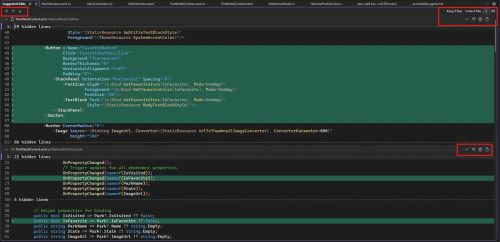 [Click on image for larger view.] Diff Updates (source: Microsoft).
The Copilot summary diff allows accepting or undoing changes at three levels: across all files, per file or per individual diff chunk. The toolbar can collapse file contents for a higher-level overview and can navigate between diff chunks. Developers can still open individual files when they need more context.
The same unified review experience is available outside Copilot edits through multi-file summary diff. That feature displays changed lines from several files in one view so developers can review the scope of a commit or pull request without moving between files.
The Open changes summary button appears in Git Changes, in commit details under Git > View Branch History and in the pull requests list in the Git Repository window. Microsoft noted that the pull requests list is currently available in Visual Studio Insiders with the View pull requests for a Git repository preview feature enabled.
Commit Message Instructions Move to Repository Files
The Commit message custom instructions text input under GitHub > Copilot > Source Control Integration no longer applies. Commit message instructions are now managed through the Copilot custom instructions file in a repository.
Documentation for repository custom instructions says repository-wide custom instructions are specified in a copilot-instructions.md file in the repository's .github directory. It also documents path-specific instructions in .github/instructions and agent instructions in AGENTS.md files.
MSVC Build Tools v14.51 Ships
The update also includes Microsoft C++ Build Tools version 14.51. The release is installed by default with the C++ desktop and gaming workloads. Developers can check the Visual Studio installer for MSVC Build Tools v14.51 for x64/x86 or MSVC Build Tools v14.51 for ARM64/ARM64EC, and can pin to v14.51 by selecting version-labeled components.
In a separate C++ Team Blog post, Microsoft said MSVC Build Tools version 14.51 is generally available, is the default compiler starting with Visual Studio 2026 18.6 and will receive nine months of servicing fixes.
The company said v14.51 includes continued C++23 conformance work, consteval and coroutine improvements, sample-based profile guided optimization, preview support for Intel APX and a major ARM SVE implementation. The Standard Library adds <flat_map> and <flat_set>, plus an overhaul of <regex>.
Microsoft Learn documentation on MSVC compiler versioning says all MSVC Build Tools are available through the Visual Studio Installer. It also says the Visual Studio Stable Channel gets monthly updates and includes the latest supported MSVC Build Tools, while the Insiders Channel updates more often for upcoming MSVC changes.
For installation, developers can run the Visual Studio 2026 installer and select the MSVC versions they want installed. Selecting MSVC Build Tools for x64/x86 (Latest) or MSVC Build Tools for ARM64/ARM64EC (Latest) keeps the latest release version installed when Visual Studio is updated.
CMake projects should automatically find the right MSVC version after loading in Visual Studio 2026. For MSBuild projects moving from Visual Studio 2022 or earlier, a Setup Assistant may help retarget projects. Developers can also use Project > Retarget solution or update the Platform Toolset manually in project property pages.
About the Author
David Ramel is an editor and writer at Converge 360.