Inside TFS
Storyboarding in Team Foundation Server 11
Storyboarding in Team Foundation Server 11 is a quick and easy way to build UIs with a tool everyone knows -- PowerPoint.
I find it difficult to build user interfaces. Being able to understand what makes a good interface for a particular application (and/or a particular client) is hard. And sometimes, by the time I've created enough of a UI to show the client, it can be difficult to make changes to it.
There are tools out there that can be used to mock up UIs. Some people use Photoshop or other image editing tools. Some people use Microsoft Visio or other diagramming tools. These tools have their good and bad points for mocking up an interface design.
Help is on the way. The Visual Studio 11/Team Foundation Server 11 Developer Preview (which will be in beta next week) includes a new tool that allows for fast prototype mocking of a UI. This is also known as storyboarding.
More articles on Visual Studio 11:
This isn't really a new tool at all. It's actually an add-in for an existing tool with which most are familiar: Microsoft PowerPoint. That's right -- I can now use the PowerPoint storyboarding add-in to quickly and easily mock up UIs for my application.
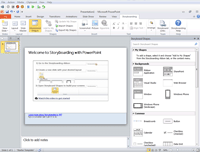
Visual Studio 11 includes a shortcut link named "PowerPoint Storyboarding" in its Windows Start Menu. Clicking this link produces what's shown in Figure 1.
 [Click on image for larger view.] |
| Figure 1. PowerPoint Storyboarding in Team Foundation Server 11 Developer Preview. |
The Storyboard Shapes window shows the different default storyboarding objects available. There are backgrounds, including Web Browser, Windows or Windows Phone. There are icons and other field elements to highly customize the UI.
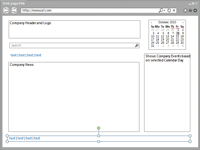
Mocking up an interface consists of creating a new slide in PowerPoint, and dragging and dropping the objects wanted for the interface. Figure 2 shows an example of a potential Web interface I mocked up in about 30 seconds.
 [Click on image for larger view.] |
| Figure 2. A quick mockup of a potential Web interface. |
I could then take this mockup and show it to the client, who could provide me feedback on what works and what doesn't. This is much faster than trying to create an actual test Web page for the client.
The Storyboarding toolbar also has a Screenshot button. This allows me to drag and drop to select an area of the screen to take a picture, which can then be used on the Storyboard. With this, I can grab images or screenshots from sites that contain features I like, and include that information visually in the storyboard.
Utilizing PowerPoint in this fashion also allows me to iteratively work on my UI design, as well as view what I've done previously. By copying and pasting a new slide into the presentation, I can add new features to the UI, while being able to see how the current UI differs from previous versions.
TFS 11 also has a new nice feature related to storyboarding. By using the TFS work item tracking system, depending on the process template I use, I have access to either the User Story work item type or the Product Backlog Item. These work items are used to gather requirements related to my application. These work items have a new tab, called Storyboards, where I can link storyboards I've created to the work item. The storyboard file isn't stored in TFS. Instead, it's stored on an accessible file share. This integration allows me to easily associate a storyboard with a work item in TFS, and track it through its lifecycle.
I really like that Microsoft is taking a standard tool that most people know how to use and utilizing its functionality to enable storyboarding. Many end users have familiarity with PowerPoint, which means I can now bring them into the development lifecycle as part-time designers. This new storyboarding functionality allows me to let the end user create mockups of the types of screens they would like to see in the application, which in turn makes my job much easier.
About the Author
Mickey Gousset spends his days as a principal consultant for Infront Consulting Group. Gousset is lead author of "Professional Application Lifecycle Management with Visual Studio 2012" (Wrox, 2012) and frequents the speaker circuit singing the praises of ALM and DevOps. He also blogs at ALM Rocks!. Gousset is one of the original Team System/ALM MVPs and has held the award since 2005.