Tips
Quick Tip for Faster Vibe Coding with Agentic AI in VS Code
While trumpeting the new release of Visual Studio Code 1.101, which features a new version of GitHub Copilot, GitHub CEO Thomas Dohmke highlighted a quick tip for faster "vibe coding" with advanced, agentic AI.
The tip concerns the use of tools in VS Code's "agent mode," which is a feature that allows GitHub Copilot to invoke tools such as editing files, running terminal commands, and applying code refactorings and other actions across a project, in response to natural language prompts. It was introduced in VS Code 1.99 (March 2024) by the GitHub Copilot team at Microsoft as part of an expansion of Copilot into a more autonomous "AI coding agent" capable of handling multi-step tasks.
Advanced, agentic AI tech has been improving and was showcased in VS Code 1.101, released yesterday.
With the release, Dohmke celebrated "Big news for vibecoders" in a social media post that highlighted a new version of GitHub Copilot in VS Code 1.101.
In reply to a comment, Dohmke shared his simple tip to quicken vibe coding in agent mode:
Comment: I'm out here clicking "Continue" like it's my full-time job. Can we get an auto-continue feature? 😅
Dohmke: You can use the experimental chat.tools.autoApprove setting to automatically approve all tool invocations, and VS Code will not ask for confirmation when the model wants to run tools:
 [Click on image for larger view.] 'Big news for vibecoders' (source: X).
Dohmke pointed to Microsoft's "Use agent mode in VS Code" documentation, which explains the feature.
By default, agent mode prompts the user to approve each tool invocation. Developers can enable the experimental chat.tools.autoApprove setting to automatically approve all tool invocations without confirmation.
Microsoft warned that enabling the setting removes the ability to cancel potentially destructive actions by the model. The documentation suggests using this setting only in remote environments as an added safeguard, and configuring it at the remote level rather than the user level. It also cautions that some remote environments, such as local dev containers or those with access to credentials, may still pose varying levels of risk.
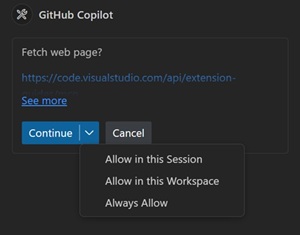 [Click on image for larger view.] Fetch Web Page? (source: Microsoft).
The term "tools" in this context refers to a discrete capability that the AI agent can invoke to perform actions beyond generating code snippets. The image above, for example, highlights the ability to load a web page. These tools enable Copilot to interact with your development environment, execute commands, and manipulate files, thereby facilitating more complex and autonomous coding tasks.
Example tools include:
-
read_file: Reads the contents of a specified file within your workspace.
-
edit_file: Modifies the contents of a file, allowing Copilot to insert, update, or delete code as needed.
-
run_in_terminal: Executes terminal commands directly within your development environment, such as running build scripts or installing dependencies.
-
list_files: Retrieves a list of files in a directory, helping Copilot understand the structure of your project.
-
get_terminal_output: Captures the output from terminal commands, enabling Copilot to analyze results and adjust its actions accordingly.
-
get_errors: Fetches error messages from the editor or terminal, assisting Copilot in diagnosing and fixing issues.
-
apply_edits: Applies proposed changes to your codebase, streamlining the implementation of suggestions.
-
run_tests: Initiates test suites to verify the correctness of code changes.
-
get_test_results: Obtains the results of executed tests, allowing Copilot to determine if further modifications are necessary.
-
search_workspace: Performs searches across your project files to locate specific code patterns or references.
- fetch: Retrieves the contents of a specified web page for use in the chat response or agent actions.
Along with chat.tools.autoApprove in agent mode, Copilot is furthering the concept of vibe coding in other ways as AI takes over more and more developer responsibilities.
For example, when we covered Next Edit Suggestions (Copilot NES), we dubbed the AI-driven workflow as "tab, tab, tab coding," where suggestions are approved with the press of the Tab key. That practice soon became popularized with the term "vibe coding," referring to devs just riding the vibe and letting AI do the grunt work, basically accepting everything the AI suggests.
As we move toward a developer space where AI will essentially do all of the coding, you probably soon won't even have to hit Tab any more.
About the Author
David Ramel is an editor and writer at Converge 360.